Document Approvals
Document Approval
In apparel connect all documents created can be sent for approval up to five levels.
This needs to be defined in ApparelConnect configuration as per organization structure of document (Cost sheet, Sale Order, Purchase Order etc.) approval.
Steps to follow:
- Define Hierarchy
- Define Users to Approve Document
- Document Approval/Rejection
Define Hierarchy
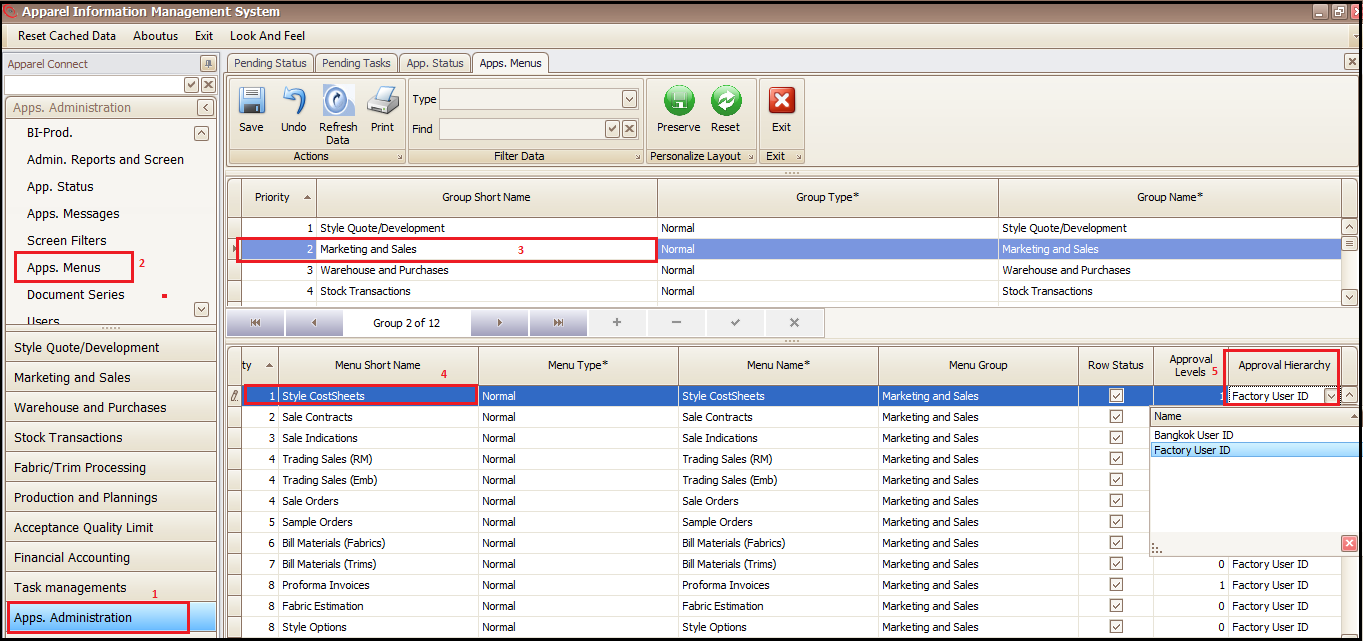
- Go to Apps Administration
- Apps Menus
- Select User Group
- Select the document from ‘Menu Short Name’
- Select Approval Hierarchy (Here user can use two hierarchies to define the approver of documents)
Define Users to approve document
Steps to follow:
- Go to Apps Administration
- Click on Users
- Select the user for which you need to select Document Approver
- Select the Document Approver name in correct Hierarchy drop down
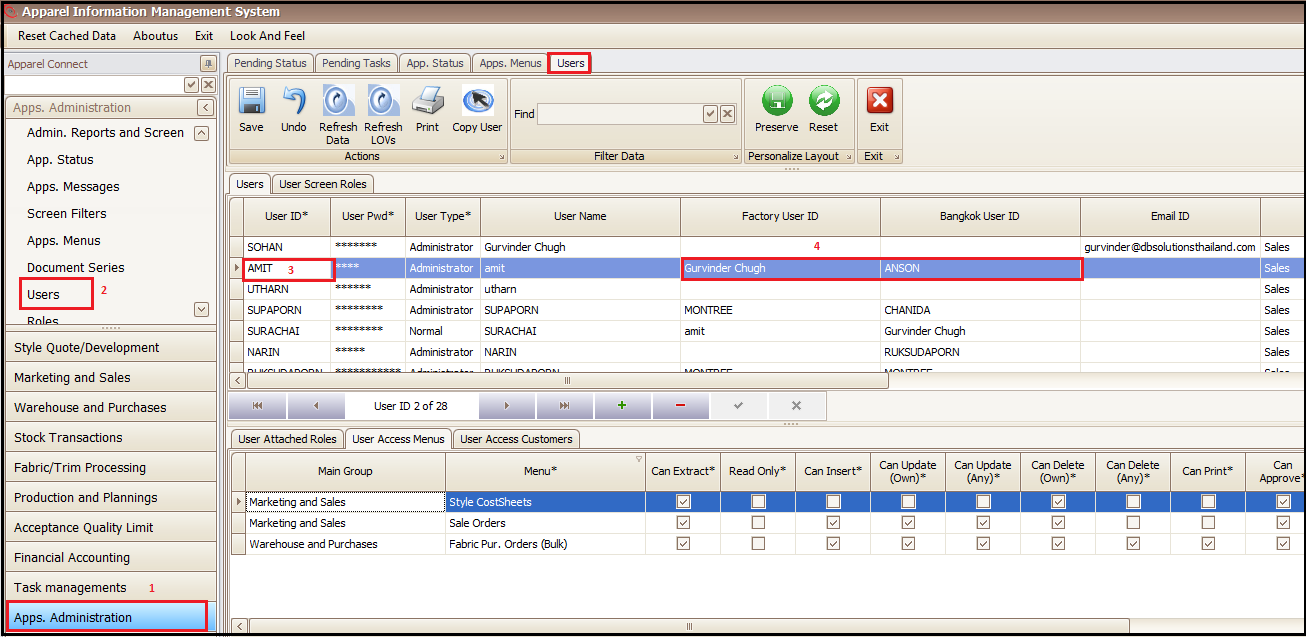
Thus, the document on being clicked on Approve, will be sent for approval to the selected user (Approver).
Similar steps can be repeated for defining multiple approval levels for each.
Document Approval/Rejection
The document will be shown in ‘Pending Document Approval’ list of approvers ‘Pending Status’ tab as shown below. Right tick (✓) is pressed for approval and cross tick (X) is pressed to reject the document. The document can be opened by clicking on document number and then can also be approved from within.
Steps to follow:
- Go to Pending Status
- Click on Pending Document Approval
- Select the Document Type
- Select the Document Number
- Approve by clicking on ✓ Reject by Clicking on X

In case of Approval, document will be approved instantly or be sent to next user for approval if it has multi-level approval.
In case of Rejection, document will be rejected and sent back to owner (document creator) of the document.
Created with the Personal Edition of HelpNDoc: Benefits of a Help Authoring Tool