Basic Navigation
Finding your way around

After just a quick look through on Apparel-Connect, you will notice that the ribbon on the top of the screen contains a standardized set of controls on nearly every screen.
This consistency helps keep the ERP simple to learn and easy to use.
Two buttons are provided to help manage performance: ‘Show Images’ and ‘Find Data’. In order to keep network traffic down and your system running quickly and efficiently, Apparel-Connect opens every screen without querying your server. Hence, when you first go to any screen from the main menu, you will have a blank screen.
Choose the desired search field from the ‘Selection’ drop down, and enter your search term in ‘Filter Text’. All the possible fields are available to choose from, ensuring that you can easily find the data you want. For example, you might search for a style using the style code, the order number, buyers' purchase order number, or anything else you happen to remember!
If there aren't too many records to look through, you always have the option to click ‘Show All’ and list all the records of your query in the systems. On a busy production system, however, this request may query the server for many tens of thousands of records, so we advise that you avoid this method. Instead, by using the powerful search facilities like filters and date range selections, you can target exactly what you are looking for (the server will thank you for it)!
Another way performance is maximized on the Apparel-Connect system is to not display any images when searching (this is the default settings and can be altered if preferred so. Images are usually large files and can cause a high load on your network and server, thus slowing down the query process. However, if you would like images to show up, simply switch on the 'Show Images' toggle button. This button will go blue when switched on, and toggle back to the background color when clicked off.
TIP! When entering data into the search box you can use, the percentage sign (%) as a wild card at the beginning of the search term, e.g. %fabric will find all records that end in ‘fabric’.
Grouping, Sorting, and Filtering your results
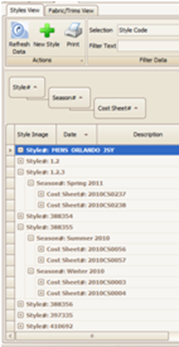
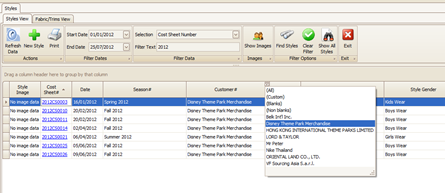
Another way to find records quickly and easily, especially when there are many to search through, is by using the powerful Sort, Filter, and Grouping options. Any of the column headings can be pushed up to the top of the grid to create groups. You can sort alphabetically or by date simply by clicking on the column headings. You can also filter the data items by using the small triangle icon in the corner of the column heading. Try it and see!
Grouping |
Filtering |
|
|
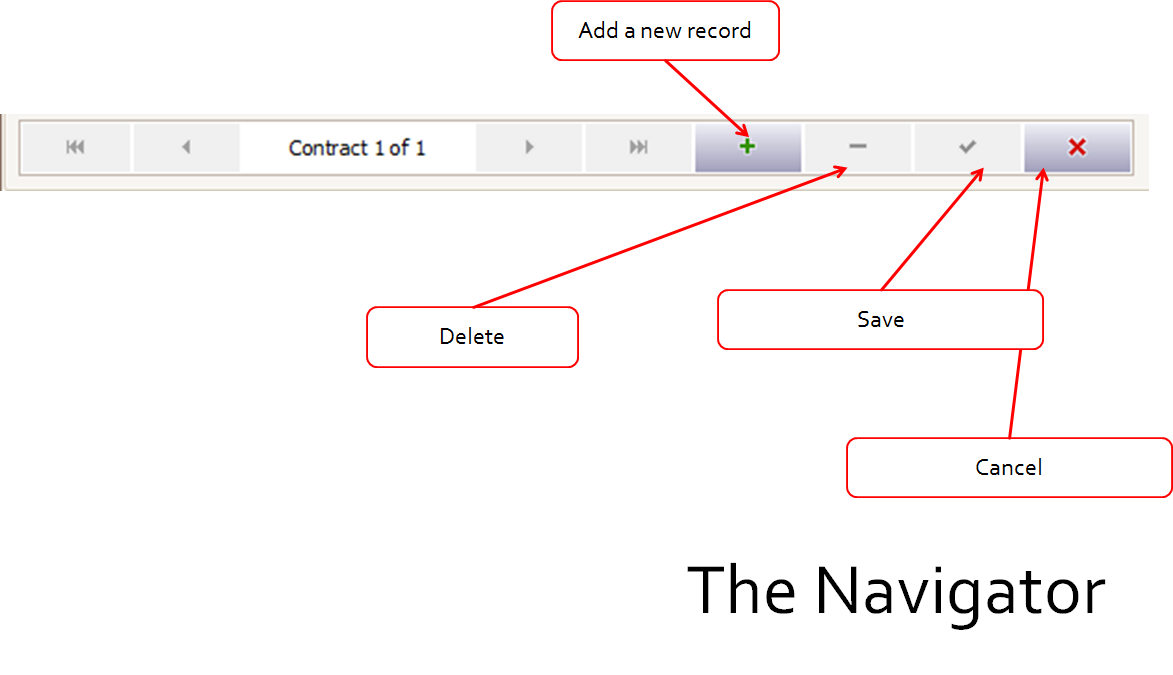
Data Entry Navigator
|
|

Created with the Personal Edition of HelpNDoc: Free EPub and documentation generator