Roles and Users
Apparel-Connect comes with a built-in security system. If you choose to use the system security, each user will have a password and security profile that enables or disables specific functions. For example, a user from the production department may be permitted to look at the customer order file, but may not be permitted to make changes. Similarly, a customer service user may be permitted to look at the cutting ticket file, but not be able to make changes.
What are Users?
Anyone who has access to Apparel-Connect is a user, including you. There are three groups of users: NORMAL, MANAGER, and ADMINISTRATOR. The administrative user account is automatically created when Apparel-Connect is installed.
What are Permissions?
The ability to perform actions on ERP (including viewing data, editing data, and changing configuration) is governed by permissions. Each permission has a name (such as 'Can print data') and covers one action or a small subset of actions. A user must be granted a permission in order to perform the corresponding action on the system. Permissions are defined by the modules that provide the actions.
What are Roles?
Rather than assigning individual permissions directly to each user, permissions are grouped into roles. You can define one or more roles on your system, and then grant permissions to each role. The permissions granted to the users are contained within the user roles. Depending on the licensed modules, there may also be an Administrator role that is automatically granted all permissions on your system.
Each user account on your site is automatically given a user role, and may optionally be assigned one or more additional roles. When you assign a role to a user account, the user will have all the permissions of the role when logged in.
It is good practice to make several roles with assigned permissions on the system.
Handling Roles
Navigate to Application Administration > Roles. That takes you to the screen shown below. If you don't see any data, click "Refresh Data".
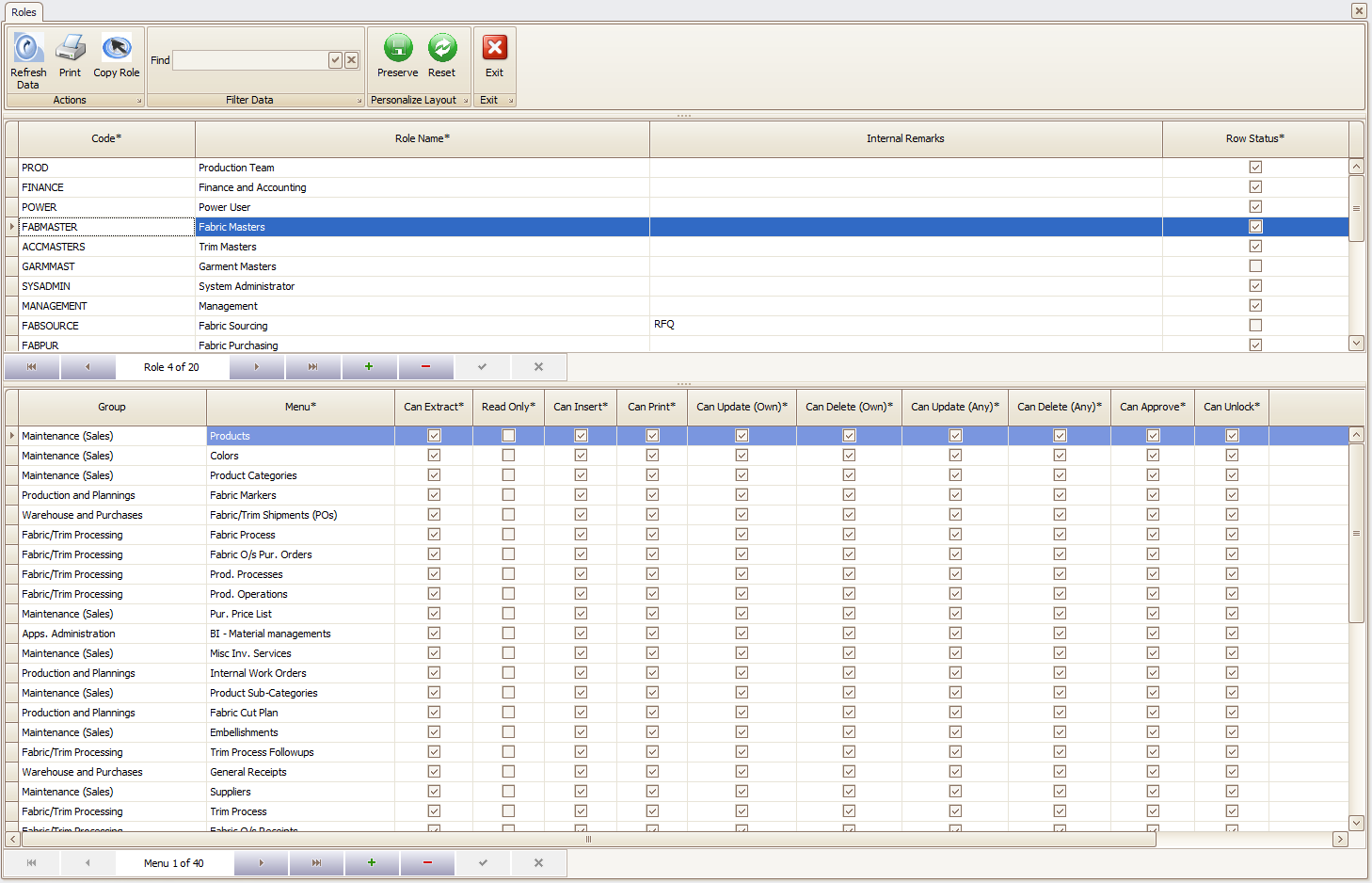
The screen is divided into two sections: Roles and associated Menu options.
Top Panel: Roles
- Code, Name, and Status are mandatory columns to be filled.
Bottom Panel: List of Menus Associated to an Individual Role
- Can Extract: Permissions to access module.
- Read Only: Permission to access but restricted to view only.
- Can Insert: Permissions to create new document or sub-entries.
- Can Print: Permissions to print reports.
- Can Update (Own): Permissions to update existing document or sub-entries (Created by Him/Herself).
- Can Update (Any): Permissions to update existing document or sub-entries.
- Can Delete (Own): Permissions to delete existing document or sub-entries (Created by Him/Herself).
- Can Delete (Any): Permissions to delete existing document or sub-entries.
- Can Approve: Permissions to approve documents.
- Can Unlock: Permissions to unlock documents.
Handling Users
Navigate to Application Administration > Users. That takes you to the screen shown below. If you don't see any data, click "Refresh Data".
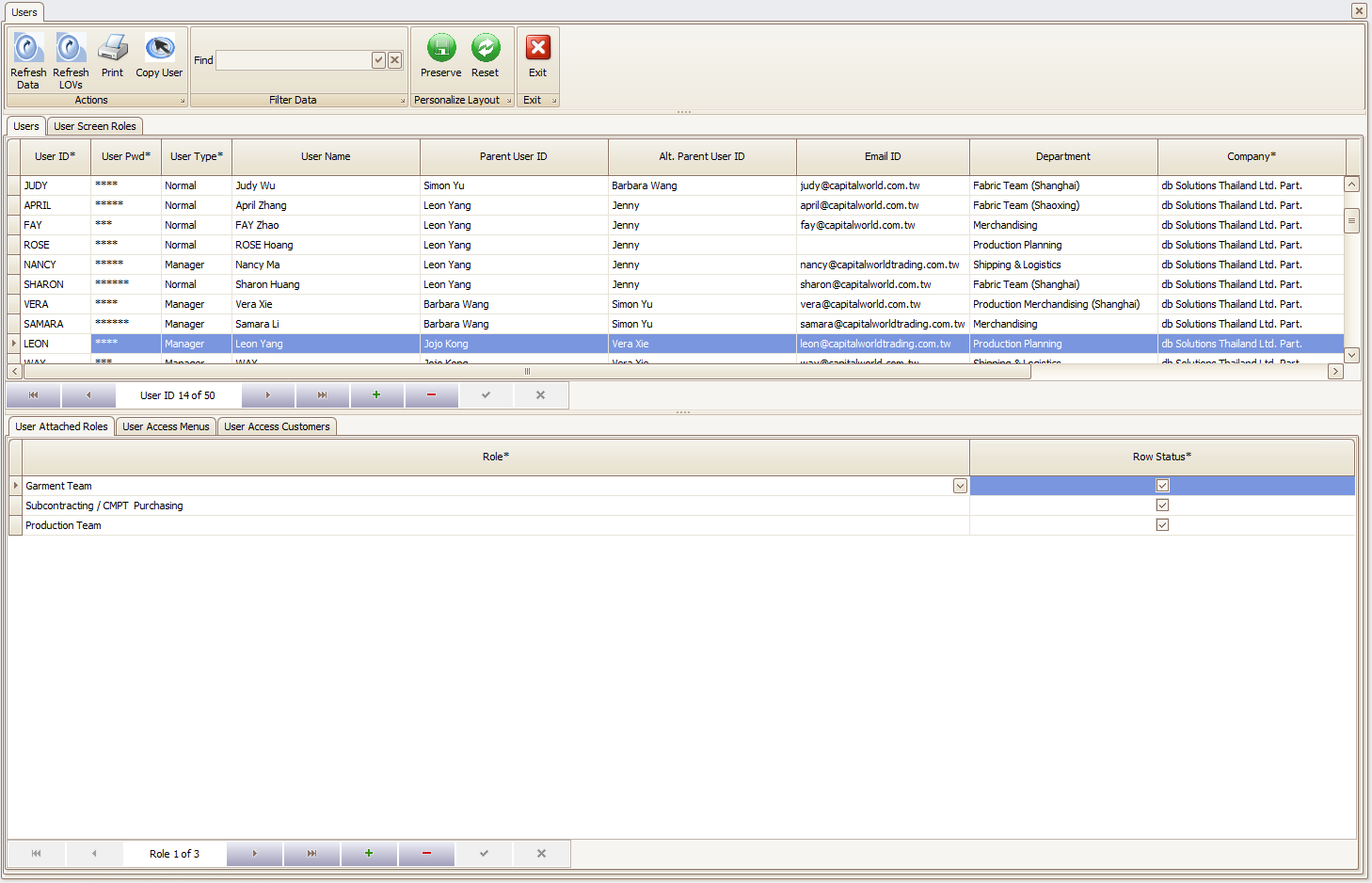
Again the screen is divided into two sections: Users and associated options.
Top Panel: Users
Almost all the columns are mandatory.
Company: If you are licensed to more than one company, this column restricts data access.
Division: If you have multiple divisions or factory units with separate data on the same Apparel-Connect installation, you can provide access to each of your factory units, but hide and protect their data from other division users.
Parent User IDs: The hierarchical relation of one user to another. These IDs are mainly used for document movements and approvals. Apparel-Connect supports two hierarchical relations.
Copy User: Quick way to create new user by using existing user credentials.
Bottom Panel: List of Options Associated to an Individual User
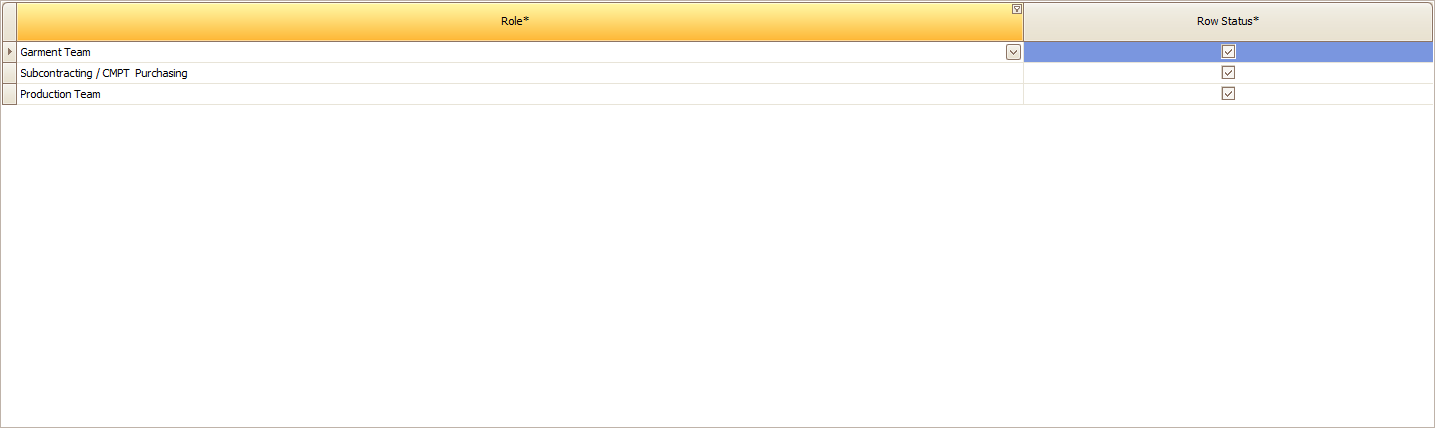
User Attached Roles:
Ability to add/update/remove/deactivate roles from user.
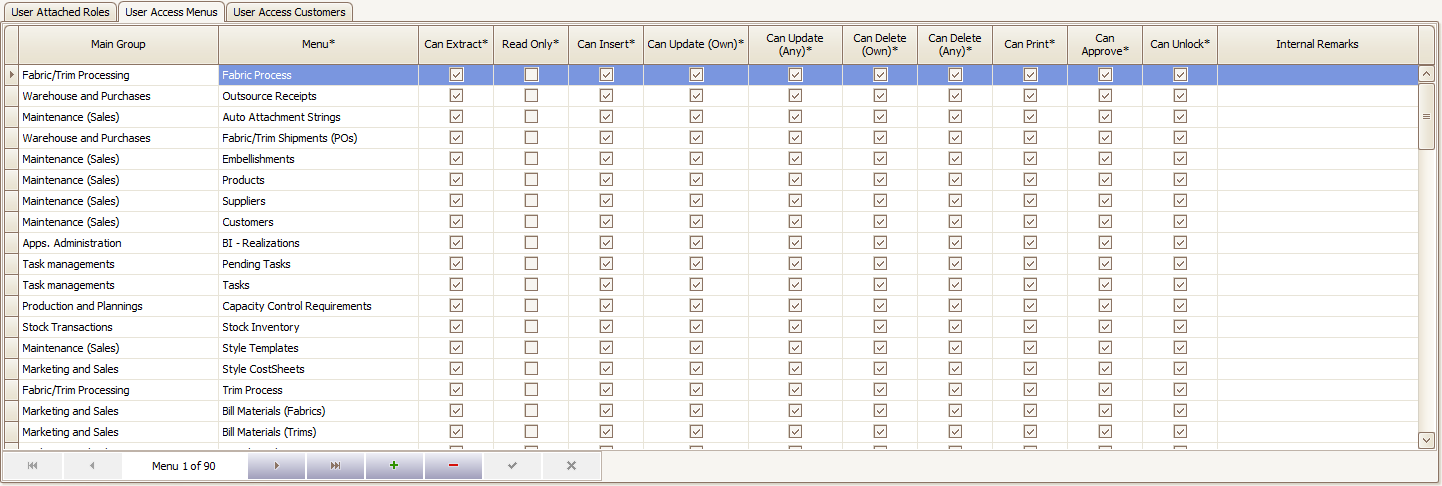
User Access Menus
By assigning roles to a user, the menus are automatically built from role configuration. Use this screen, in special cases where additional grants or revokes are required.
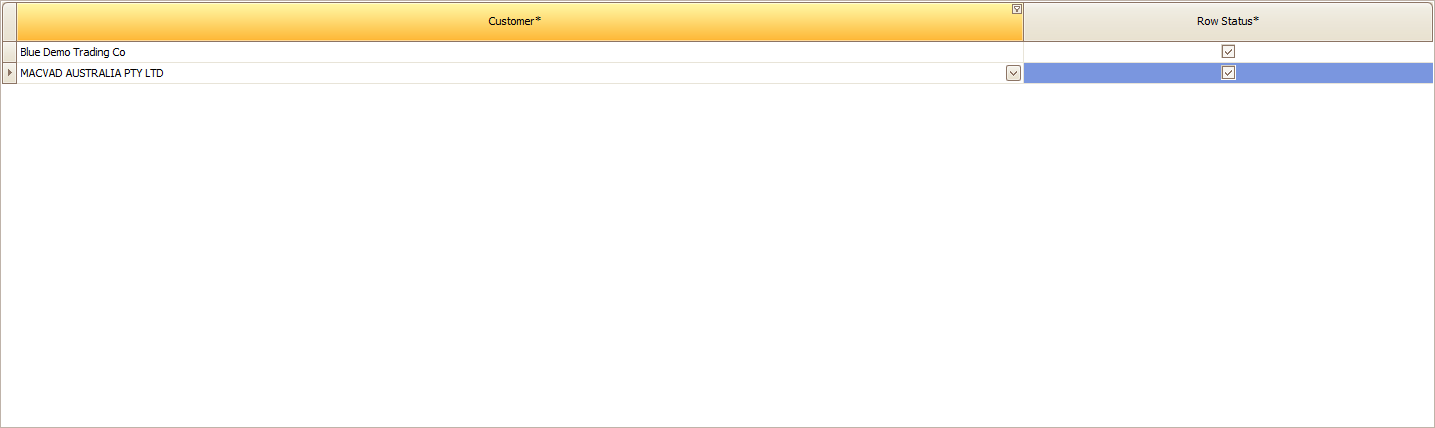
User Access Customers
Ability to restrict a user to data pertain to the list of customers included. If this is blank, that means the user can see all customer data.
User Screen Roles
Applicable on multi-tab screens where the user will be restricted to see tab data. For example user can create/view Fabric data but not Trim data.

Created with the Personal Edition of HelpNDoc: Easy EPub and documentation editor