Working with Data Grids
Open any search screen.
Sorting
Apparel-Connect data grids support data sorting by cell values and display text, except for columns with multi-line text columns and images. Click a column header once to sort data in ascending order. Consequent clicks will reverse the sort order. The sort glyph (up or down arrow) in column headers indicates the current sort order.

Clear Sorting
To remove data sorting by a specific column, users can click the column's header with the 'Ctrl' key pressed. Alternatively, a user can right-click the header and select 'Clear Sorting'. To simultaneously remove sorting by all columns, select 'Clear All Sorting' instead.

Sort Groups by Summary Values
The Data Grid can sort groups according to these groups' summary values.

Filtering
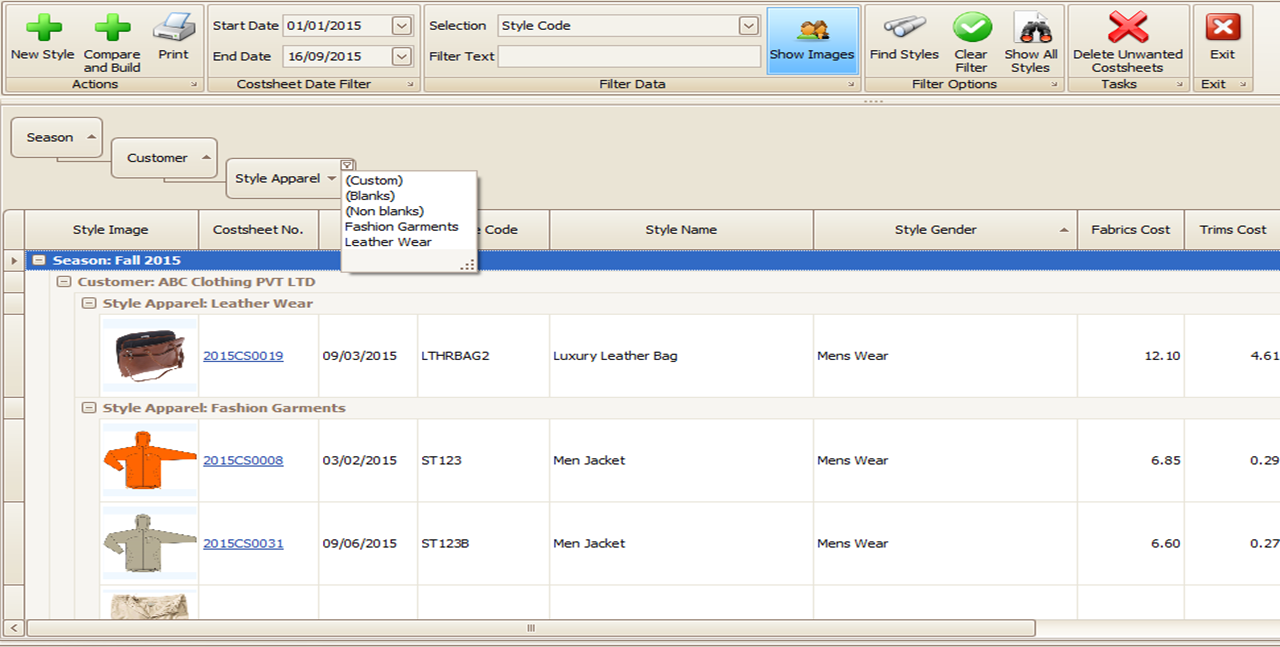
When filtering is applied to a data grid, displayed records are restricted to those that meet the current filter criteria. You can filter data against single or multiple columns. Click in the top right corner of the column you want to filter (funnel icon).
Example : Filter by customer : ABC Clothing

The filter is displayed at the bottom panel of the screen (as shown below).

The 'Filters' tab gives users a wider pool of filtering options. For example, when filtering by dates, you can only show the records that correspond to the previous week or month.
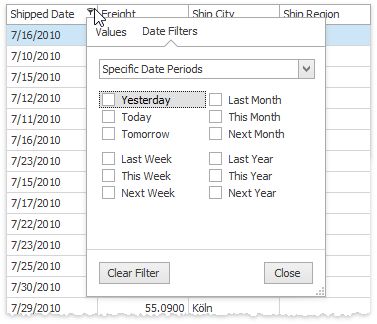
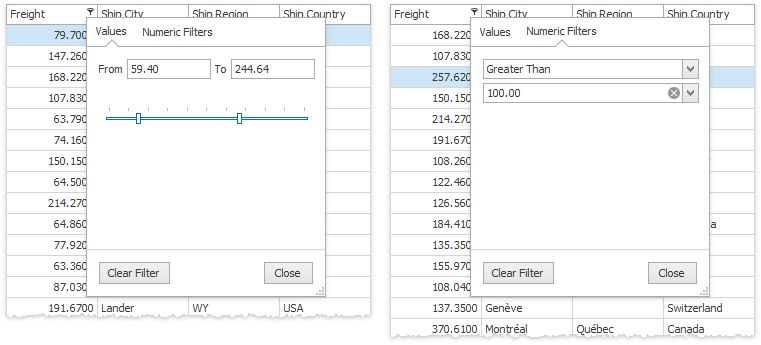
The content of a filtering drop-down menu depends on the type of data displayed by the related grid column. For instance, the figure below illustrates what a menu would look like when filtering by a numeric column.
Find Panel
The Find Panel allow users to apply a temporary filter that filters data across all Data Grid columns at once. To invoke this panel, Type in the text you need to search for in the 'Find' box and press 'Enter' or click the tick sign.
Grouping
To group, drag the column into the group bar. You can also filter a grouped column.
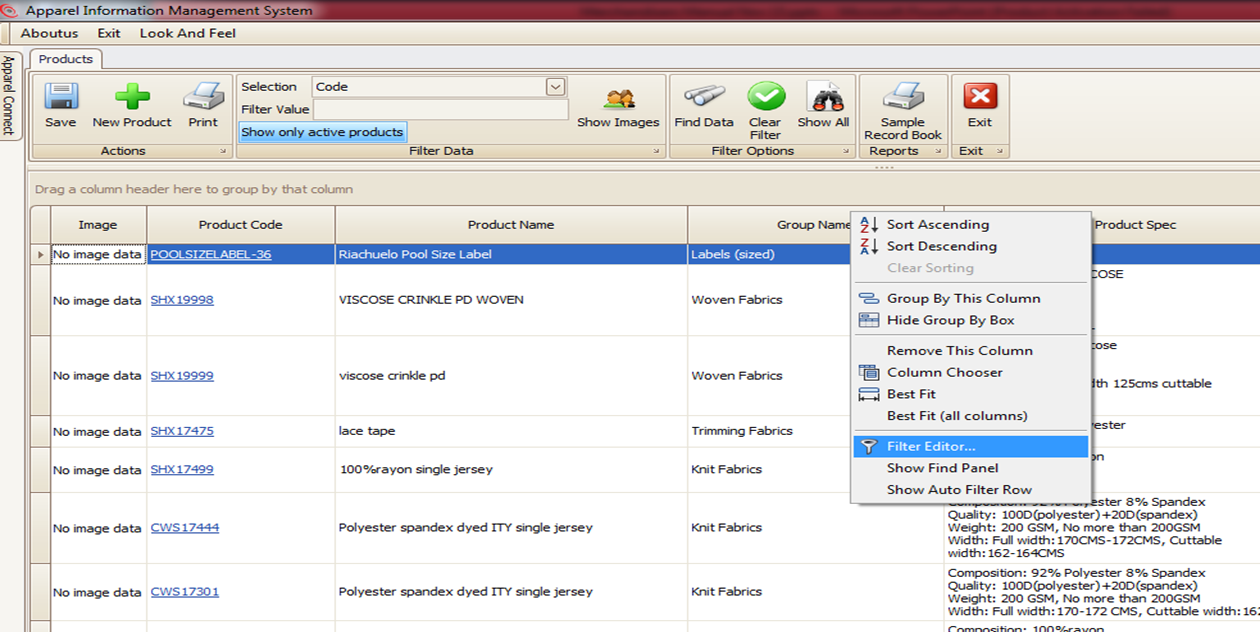
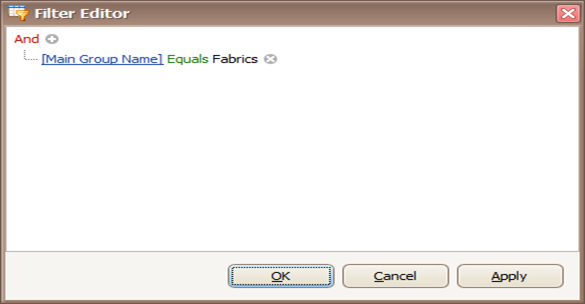
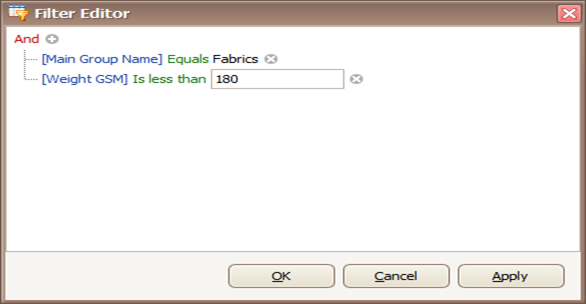
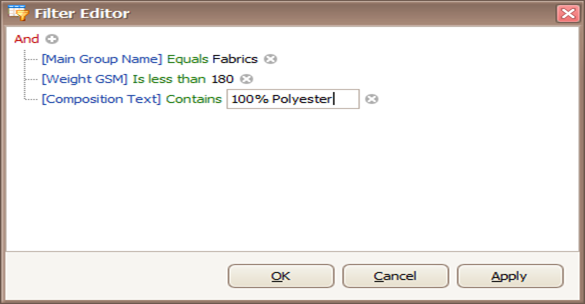
Filter Editor
Right–Click in column headings
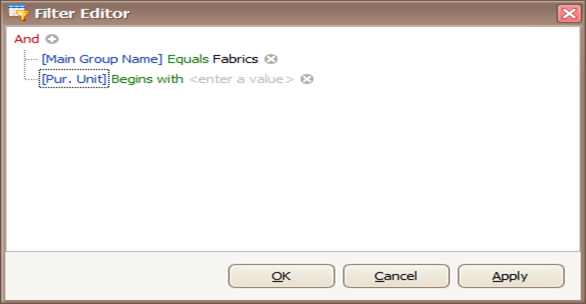
Add conditions / Change ‘And’ to ‘Or’ |
Select the field in blue … |
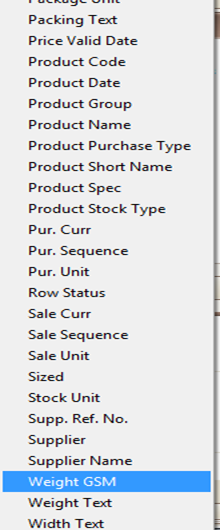
Select the field name |
|
|
|
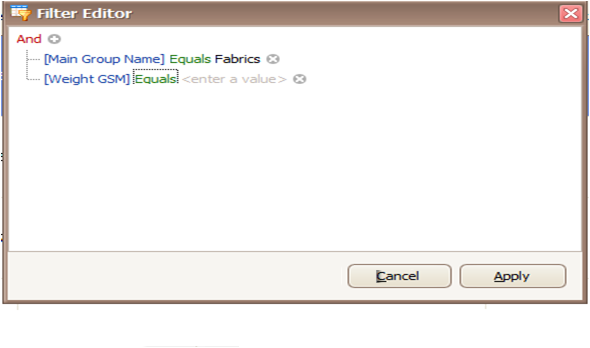
Choose between a variety of operators. |
Type the value |
Press OK |
|
|
|
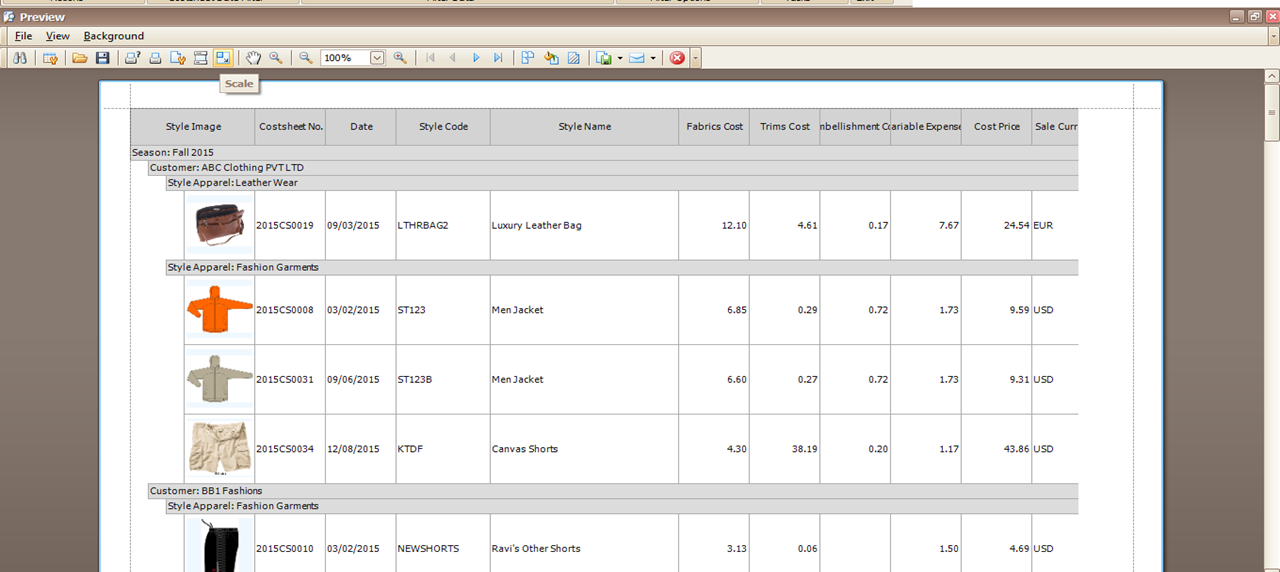
Arrange your report then ‘Print’
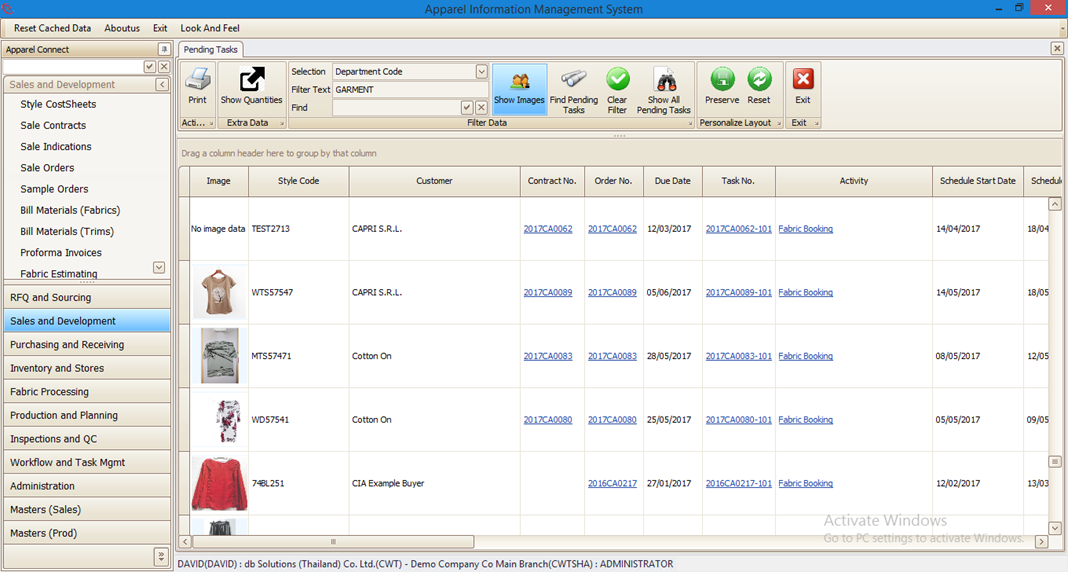
Personalizing your layout
Save your preferred grid layout for later use by pressing ‘Preserve’ . To go back to the default layout – just press 'Reset'.
Created with the Personal Edition of HelpNDoc: Free EPub and documentation generator