Bill Materials
Bill of material is the list of fabric and trim raw materials (with quality and quantity) which are required to manufacture the garment/style for its sale order quantities. In Apparel connect BOM is generated automatically at the time of approval of sale order/contract.
Bill of Material (Fabric)
In Apparel Connect fabric and trim BOM is accessed separately via sales order. User has to Click on sale order to access the BOM.
Steps to follow:
- After opening the sale order click on ‘Next Action’
- In drop down click on ‘Click on Fabric BOM’

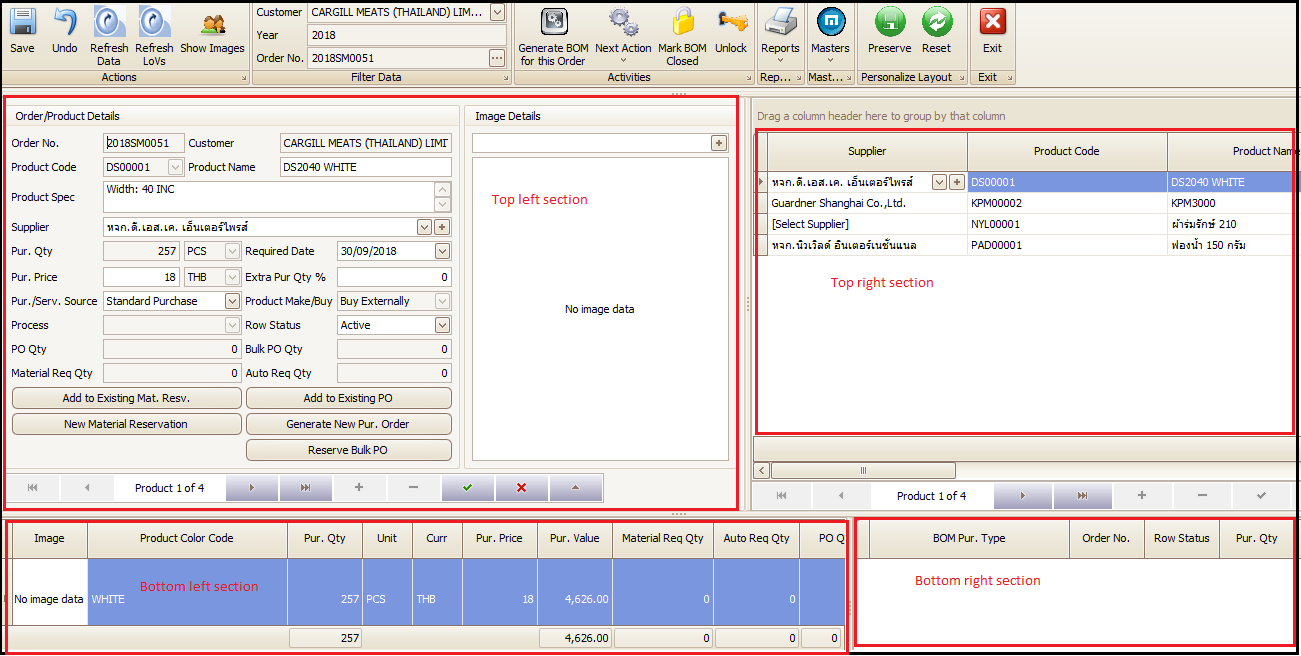
Once user clicks on ‘Go to Fabric BOM’ system opens the fabric BOM screen. In fabric BOM screen there are four sections.
- Top right-side section: This contains the fabrics’ details (code, name, total required quantity etc.) being used for that garment/style. User can change /select the supplier if it was not selected correctly or was blank. User can select one by one for further actions.
- Top left-side section: User can see the item details in this section by clicking on item code or name of each item in the right section of the screen. Additional to it, this screen contains the buttons for fulfillment (purchase, stock reservation etc.) of that material.
- Bottom left-side section: This section contains the color wise break up quantity required and updated booked or purchase PO quantity of selected material
- Bottom right-side section: This section contains the information for quantity and document number of purchase or reserved quantity for select material
Bill of Material (Trim)
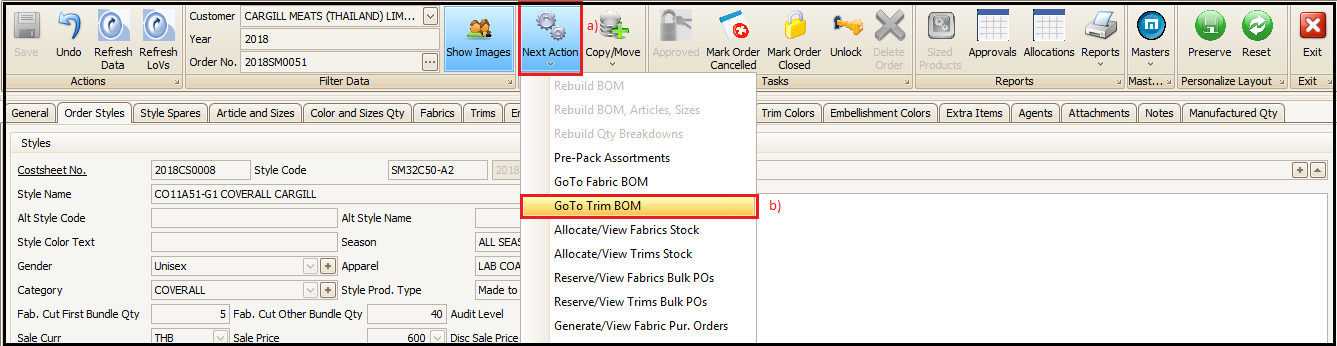
In Apparel Connect fabric and trim BOM is accessed separately via sales order. User has to Click on sale order to access the trim BOM.
Steps to follow
- After opening the sale order click on ‘Next Action’
- In drop down click on ‘GoTo Trim BOM’
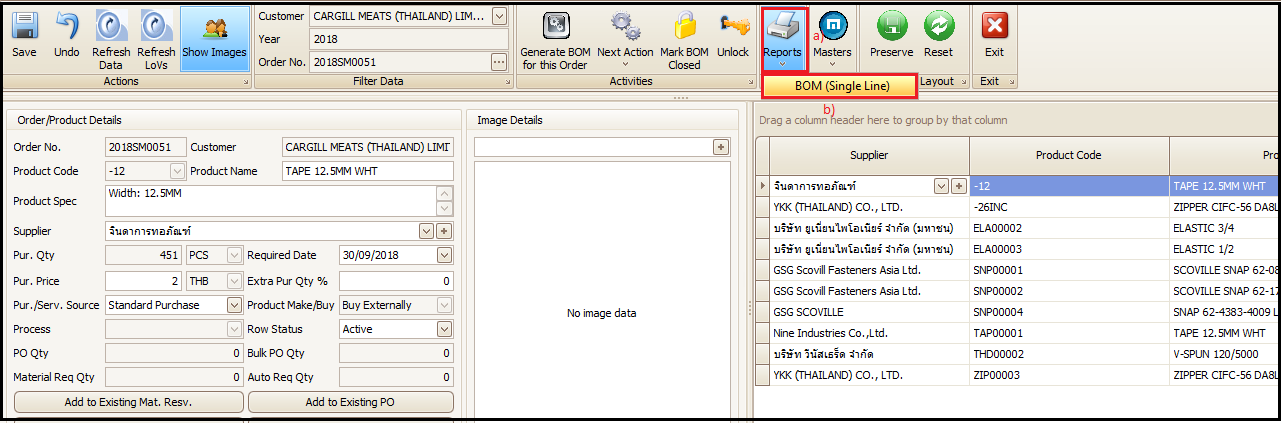
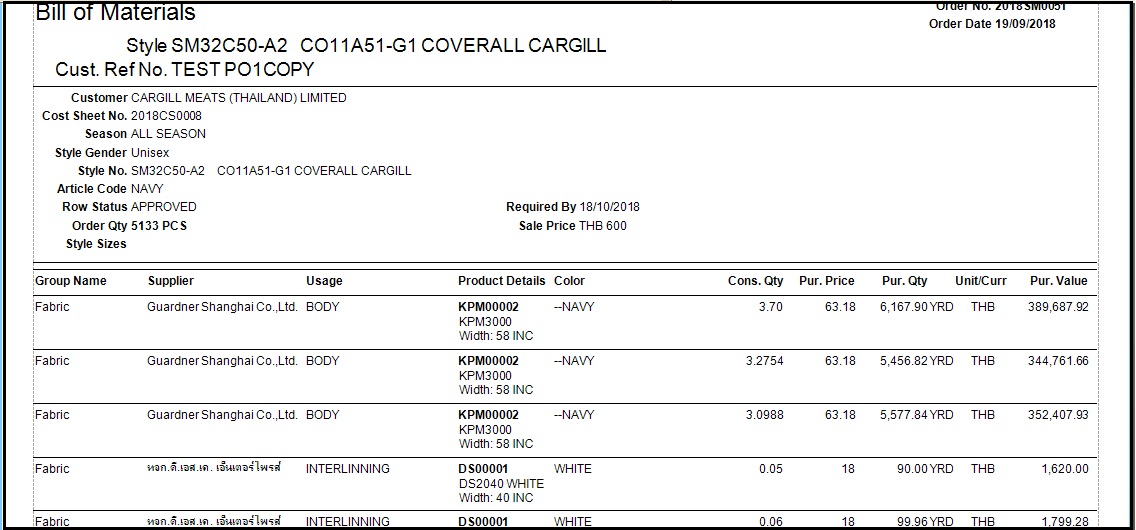
To get the print of this BOM
- Click on Reports
- Click on BOM(Single Line)
- BOM print report.

Reports at the top of Sale Order screen (both fabric and trim)
Steps to follow
- Click on Reports
- Click on Bill of Materials (no images) or Bill of Materials (with images)
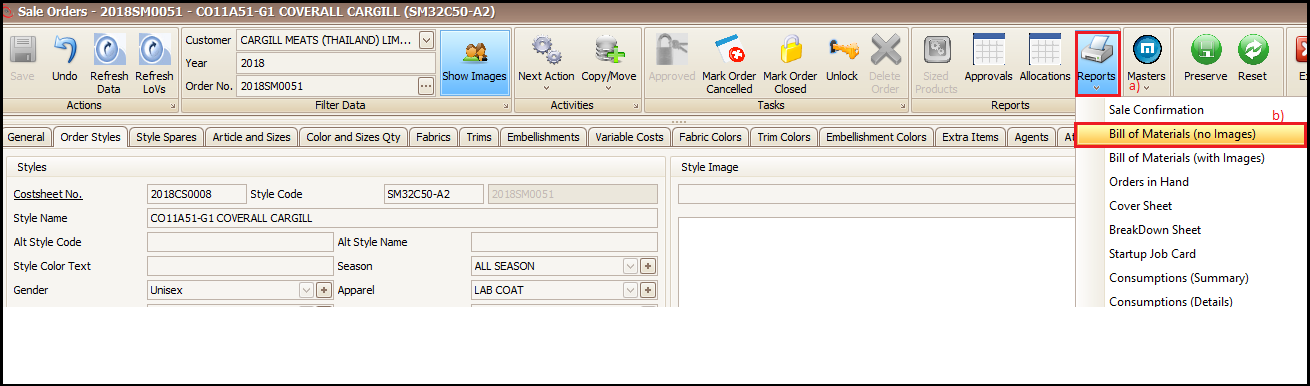
- Bill of Material Report view (From Sale Order)
Created with the Personal Edition of HelpNDoc: Easily create HTML Help documents