How To Create a Material Issue to Production
Issue to Production
After material is received in store and quality check is completed, material is issued to production (lines) as per the planning. The sale orders for which the production needs to be started, fabric and trims are issued to respective departments (cutting sewing, finishing etc.).
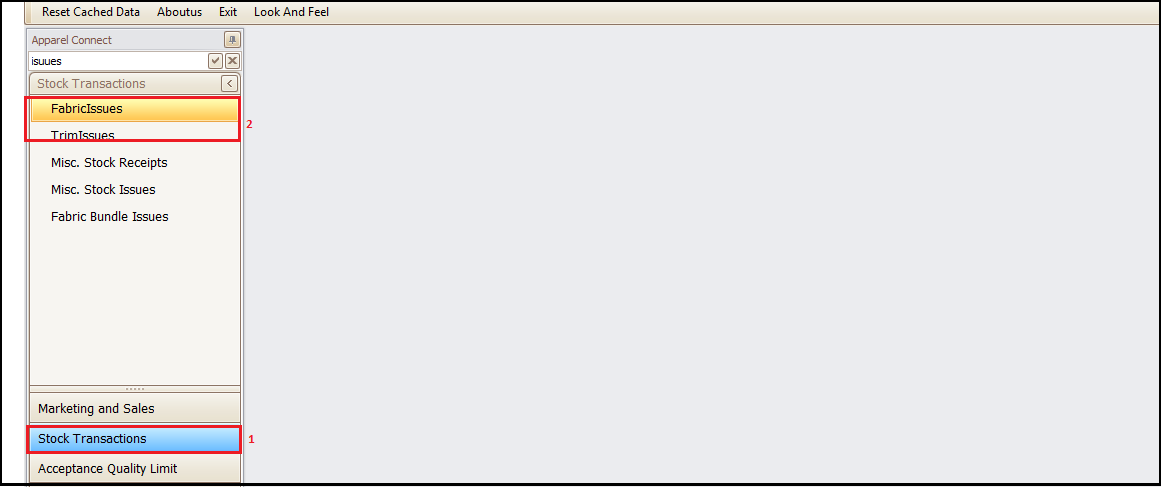
To issue the material (fabric and trims) user needs to follow the below path.
- Go to ‘Stock Transactions’
- Click Fabric Issues or Trims Issues as per requirement
- To issue Fabric- Click on Fabric Issues
- To Issue Trim- Click on Trim Issues
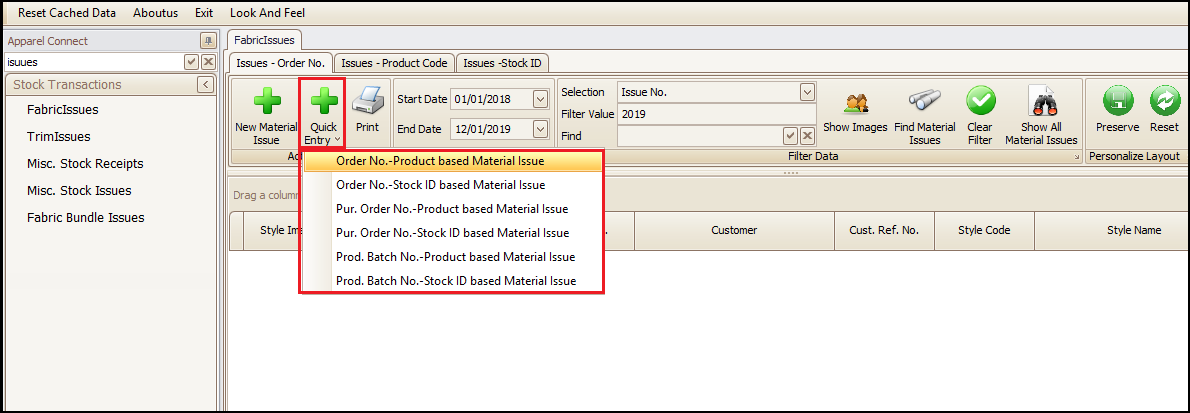
After clicking on Fabric/Trim Issues, screen to issue opens at right side. There user is advised to click on ‘Quick Entry’. Then select one the different options to issue.
- Order No.- Product based Material issue- This is used for issuing materials on sale order basis.
- Order No. Stock ID based Material Issue-This is used for issuing materials based on stock IDs
- Pur. Order No. Product based material Issue- In this case materials purchased single/multiple Purchase Order are issued
- Pur. Order No. Stock ID based Material Issue- This is used to issue based on stock IDs of materials purchased in single/multiple Purchase Orders
- Prod. Batch No.-Product based Material Issue- In this case product wise pending material is issued for a production batch
- Prod. Batch No.-Stock ID based Material Issue-In this case material is issued on basis of stock IDs under production batch number.
- After selection of issue type rest of the material issuing process is same. Select the respective document (sale order, purchase order, production batch etc.) for which material is pending to be issued.
Here we will take most general case of material issue against Sale Order.
So, Click on Order No.- Product based Material issue
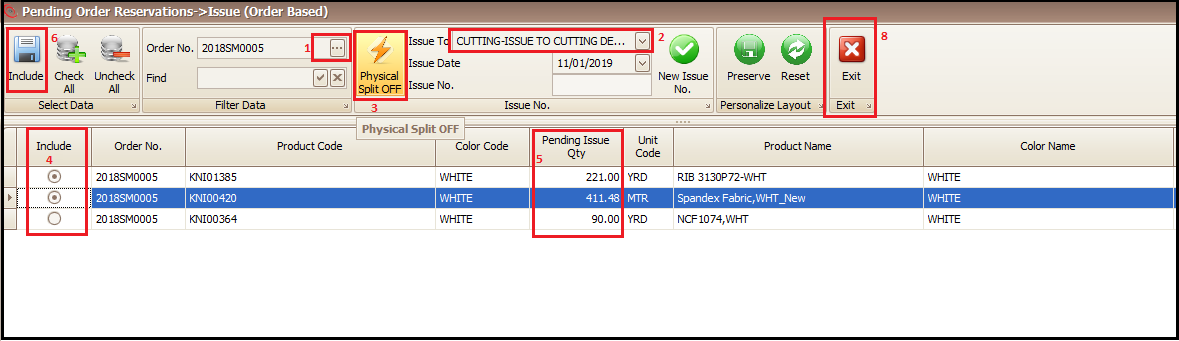
After click on ‘Order No.- Product based Material Issue’ a new window will open and user needs to follow the below steps.
- Select the respective sale order for which you need to issue the materials
- Choose the issue to (production line for which material needs to be issued)
- Turn on Physical Split only if you want to split the pending to issue quantity and issue partial quantity
- Check the material row that you need to issue out of pending material list
- Change the quantity only if you want to issue partial quantity
- Click on include
- Repeat the step 1 to 6 if you want to issue the material for other sale orders in same material document/dispatch
- Click on Exit to exit the window and to confirm the issue document (if we split quantity then a new window opens and user simply needs to press only exit there also)
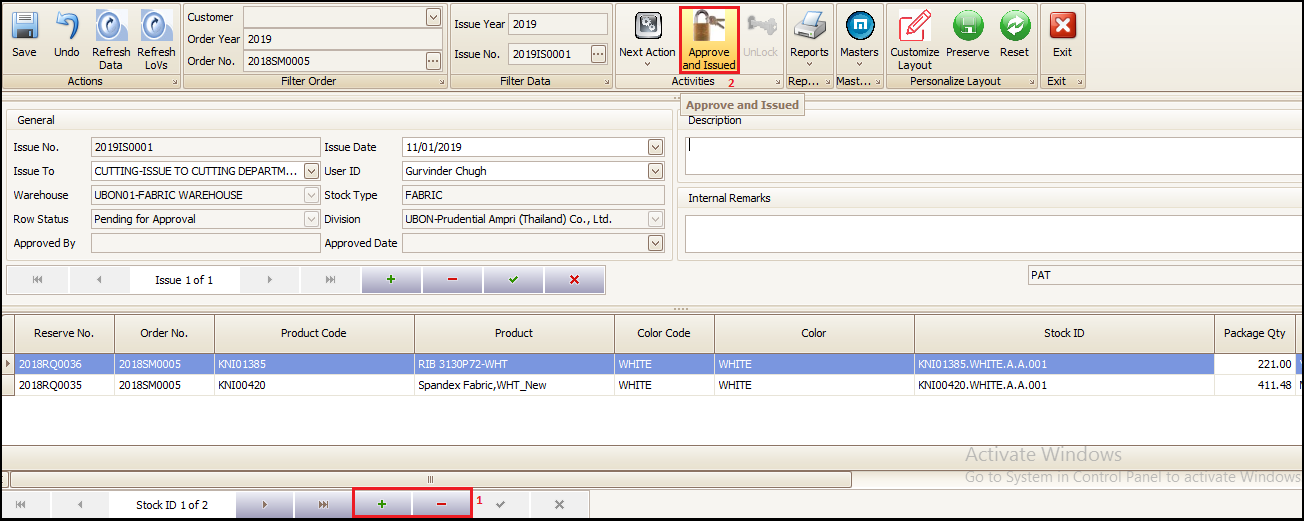
After clicking on exit system comes to issue document main page. Here user can ‘add’ or ‘delete’ any material row but cannot change the row quantity.
- Add a new row of material by clicking on + and delete the existing material from issue by clicking on –
- By clicking on ‘Approve and Issued’ user confirms the issue quantities and thus stock is reduced by the same margin of issue quantities
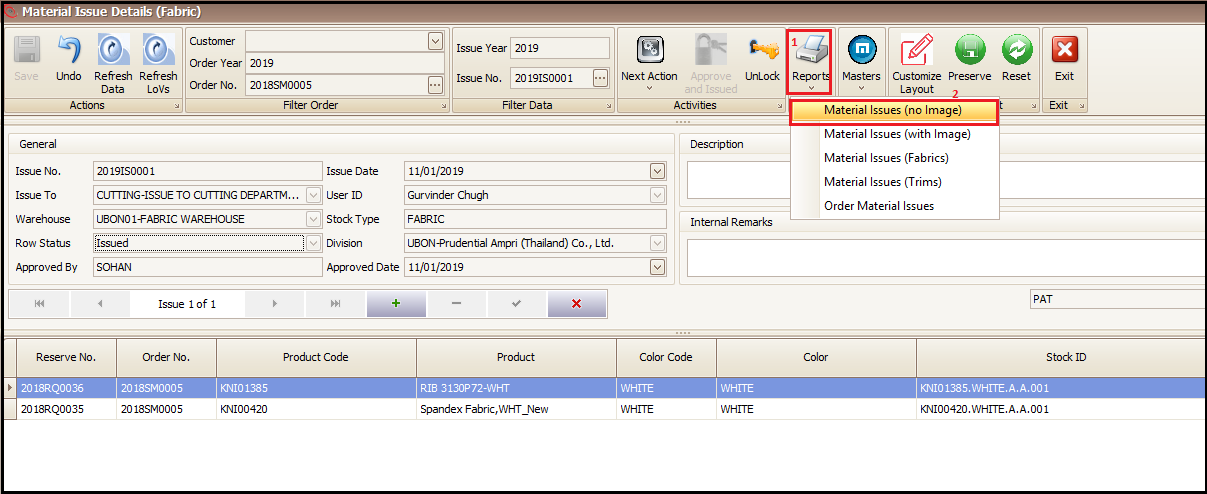
- To print or view the material issue document the user should click on ‘Reports’ and
- Then choose the desired format whichever suits most to their requirement from the available formats in drop down. Here we take the first as shown in below screen.
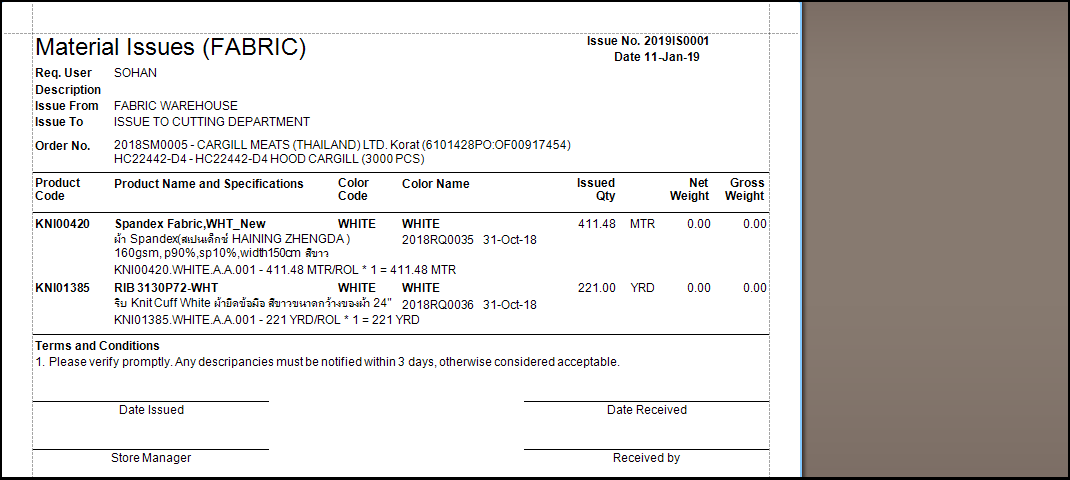
- Print report view
Created with the Personal Edition of HelpNDoc: Easily create iPhone documentation