How To Create a Material Purchase Order (Sale Order Based)
Material Purchase Order
If no free stock material and no bulk purchase order is available to reserve on BOM material requirement. In that case purchase team have to create the new purchase order to fulfill the material requirement.
Steps to follow:
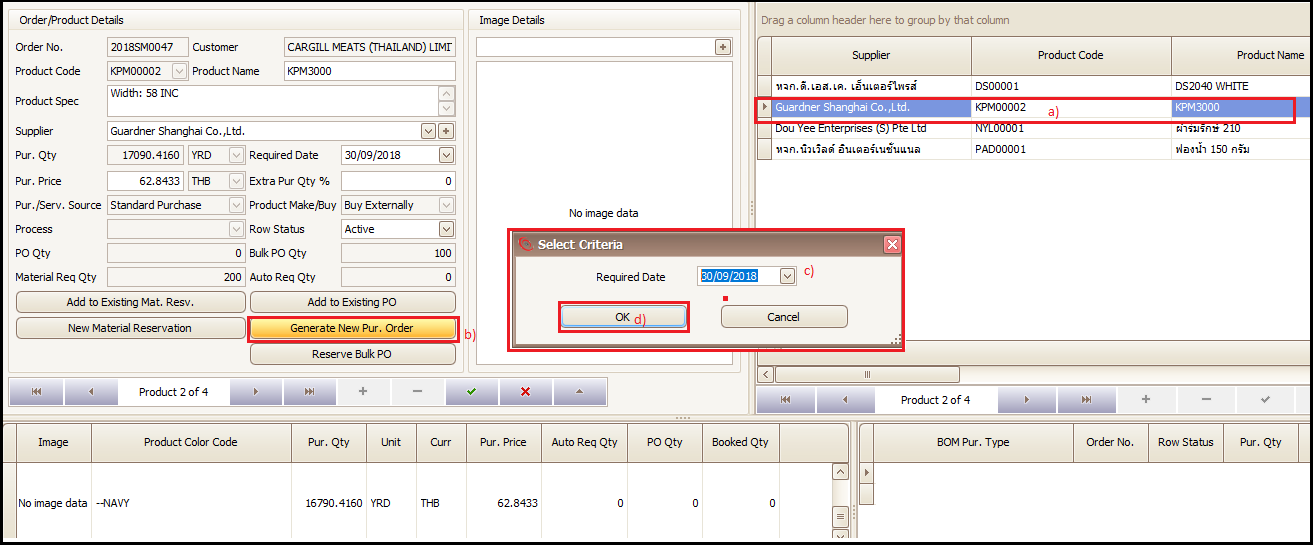
- Click on Sale Order BOM
- Select the item and supplier (if not coming from product master) for which new purchase order needs to be created and Click on ‘Generate New Purchase Order’
- Select the ‘Required Date’ (material delivery date)
- Click on OK
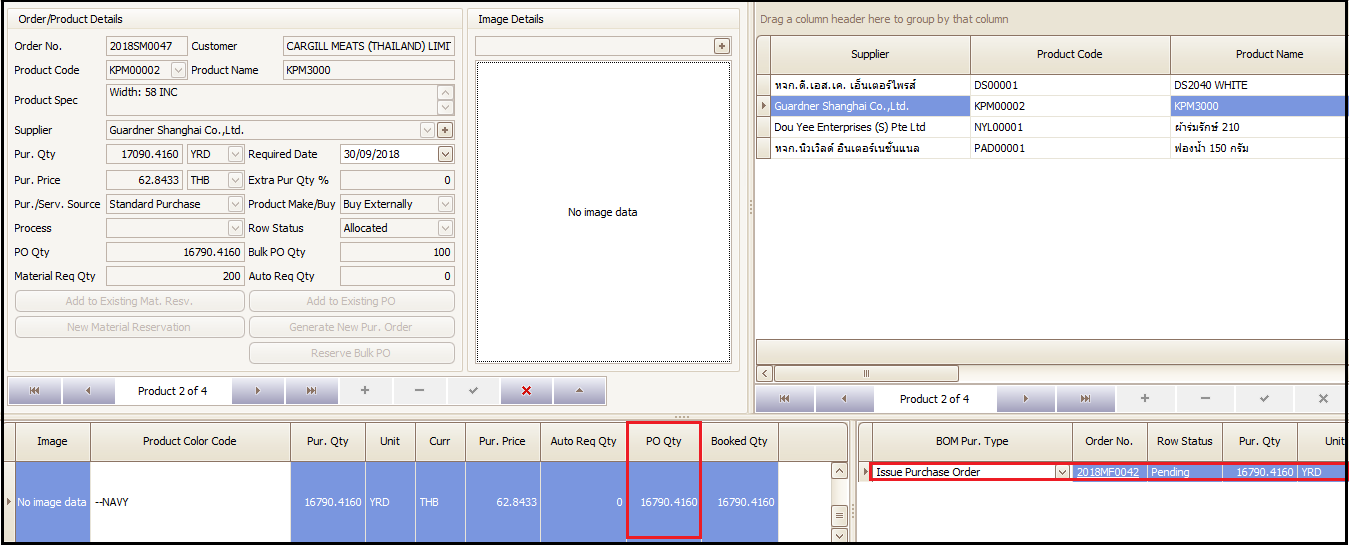
- The purchase order will be created by system and information will be updated in BOM as highlighted in below scree. This purchase order will be in pending for approval. Purchase team needs to get it approved before sending to supplier.
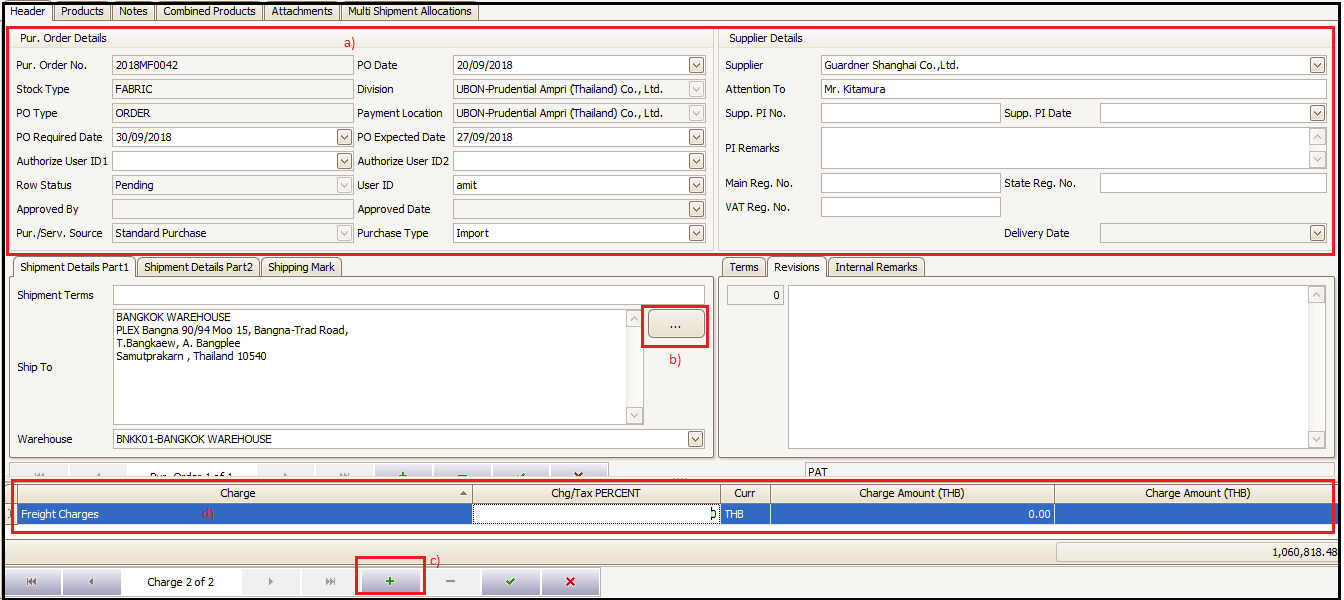
- User can click on order number updated in BOM to open the purchase order. The first screen will be header of PO where user can change any information, if required, related to delivery dates, supplier, warehouse etc.
- To add taxes or additional charges user will click on + button highlighted at the bottom of the screen and can select the tax or other charges (% or amount) applicable in that purchase order.
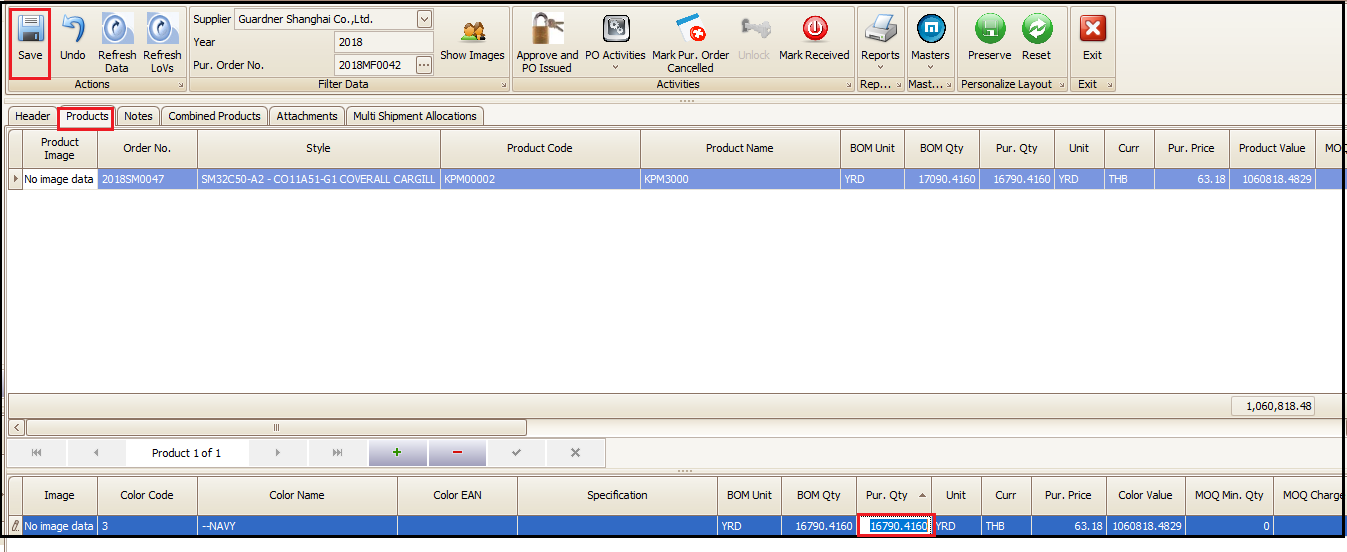
- Products tab will have information about the items of purchase order. The upper section of screen will show one row for each product being purchased in that purchase order. This row will have the total BOM quantity, total being purchased quantity, MOQ and MOQ charges if defined in item master. If the user clicks on any row in upper screen then the below screen will reflect the color wise break up of quantity of that product in bottom half part of the screen. In this case there is only one color (Navy) of this item and user change the quantity if they want to purchase extra or less then BOM quantity. User will click on ‘Save’ button at top to save the changed information.
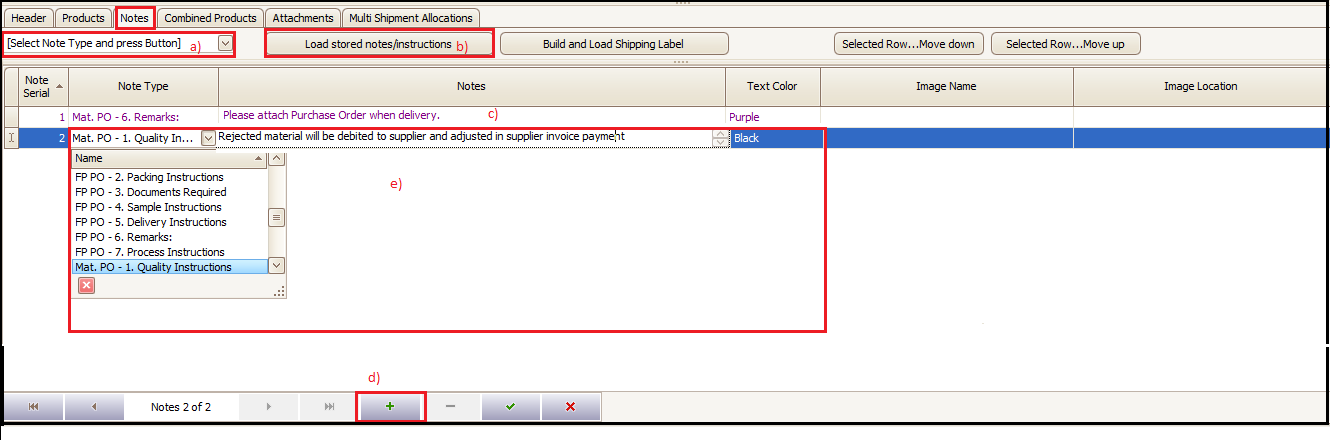
- User can select the new notes from masters
- Click on ‘Load stored notes/instructions’ to insert selected notes
- Auto insert notes for purchase order will come automatically
- User can click on + button and choose note type and type manually if some special remarks needs to be printed in purchase order (text color for notes can be selected for each notes’ row and same color will be reflected/printed in PO view.
- In combined products tab all purchase order items will be shown with color wise break down quantity, price and value.

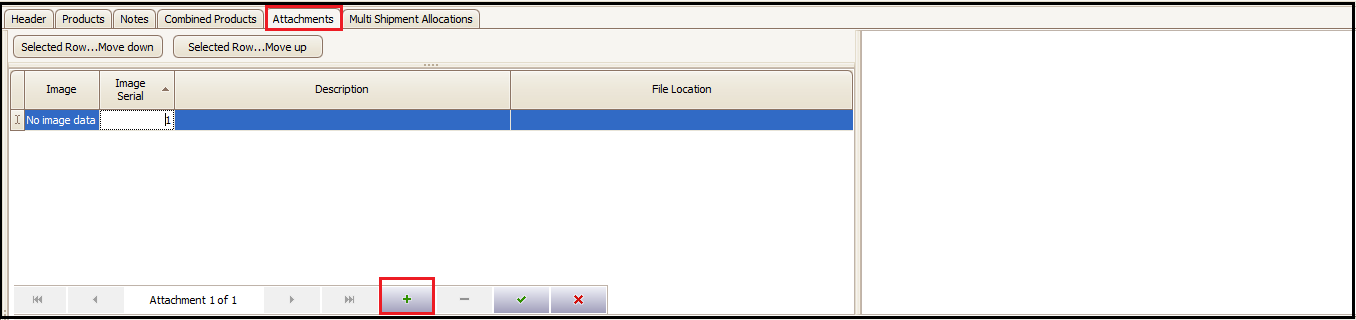
- Purchase team can attach the images, supplier PI, Invoice and emails etc. related to this purchase order by clicking on + button at the bottom by selecting the file from file location.
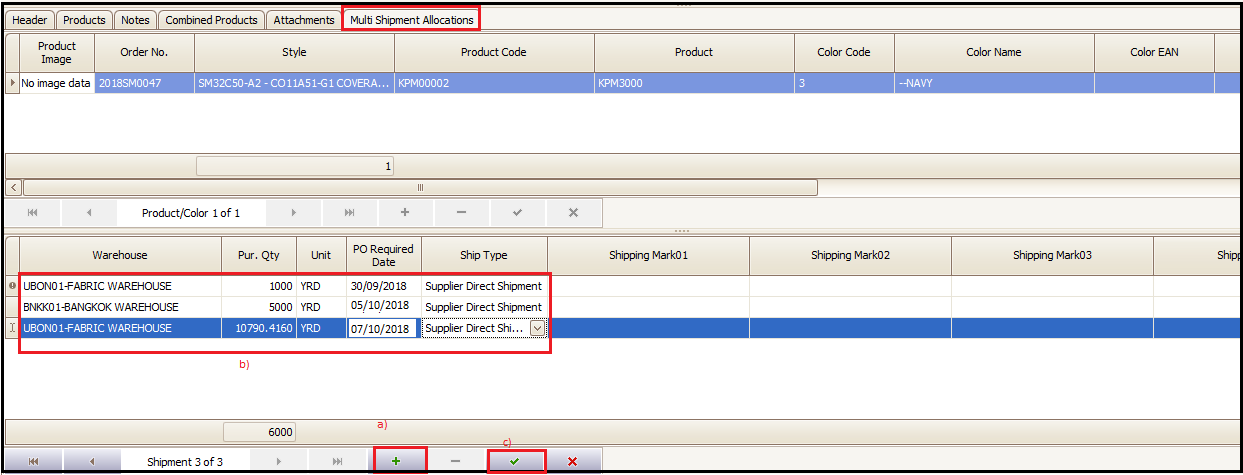
If multi location delivery and multiple material delivery dates are required to be added, for the shipment of that purchase order items, then purchase team can define those by clicking on + button.
- Click on + button
- Enter delivery location, quantity and delivery date
- Save the added row wise data by clicking on green tick
Created with the Personal Edition of HelpNDoc: Free Web Help generator