How To Create a Sale Invoice
Sale Invoice
Sale in voice is sent to buyer for payment purposes. It is also sent to some local authorities shipment (export) clearances.
Once the packing list is confirmed, sale invoice button is activated. User can click on ‘Invoice it!’ to make the sale invoice. To make any changes in packing list, if required after confirming it, user can click on ‘Unpack it!’ and change the incorrect details and come again to confirm or approve packing list and invoice it.
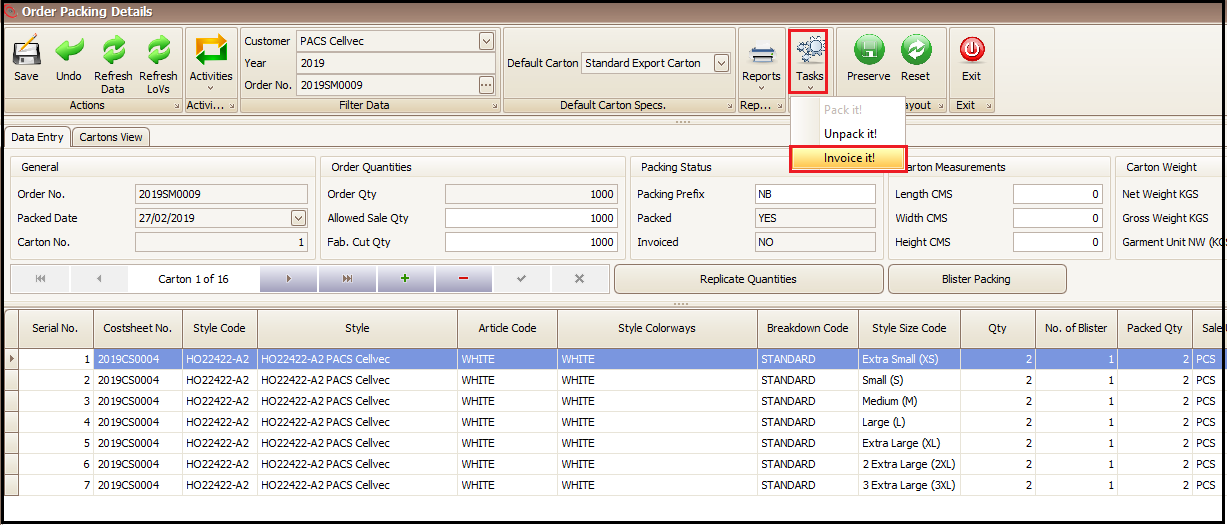
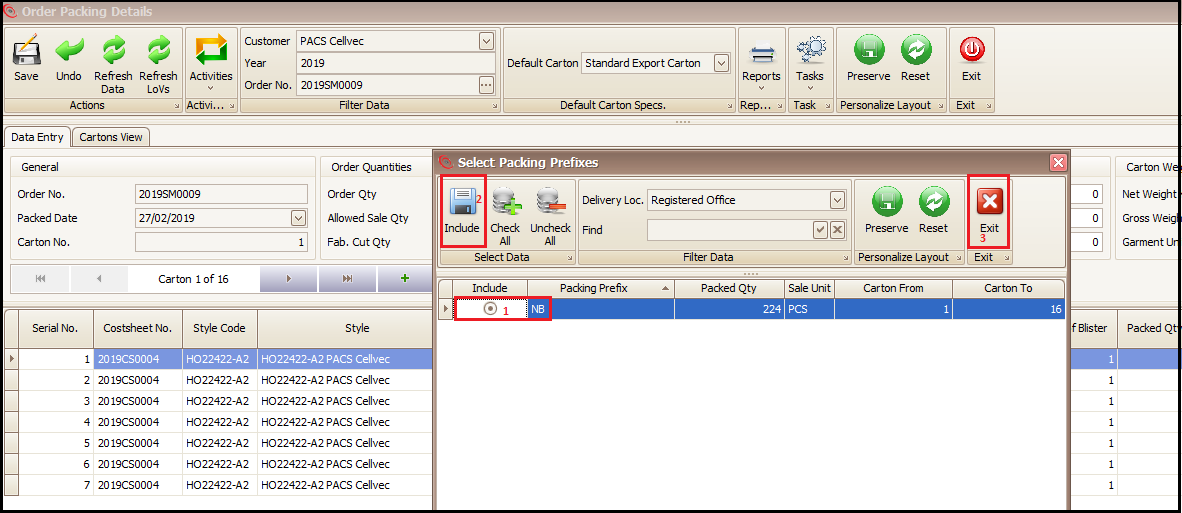
After clicking on ‘Invoice it!’, a new pop window will open which will have all packing lists created till now.
- User can choose which packing lists needs to be included in sale invoice
- Click on ‘Include’
- Press ‘Exit’ button
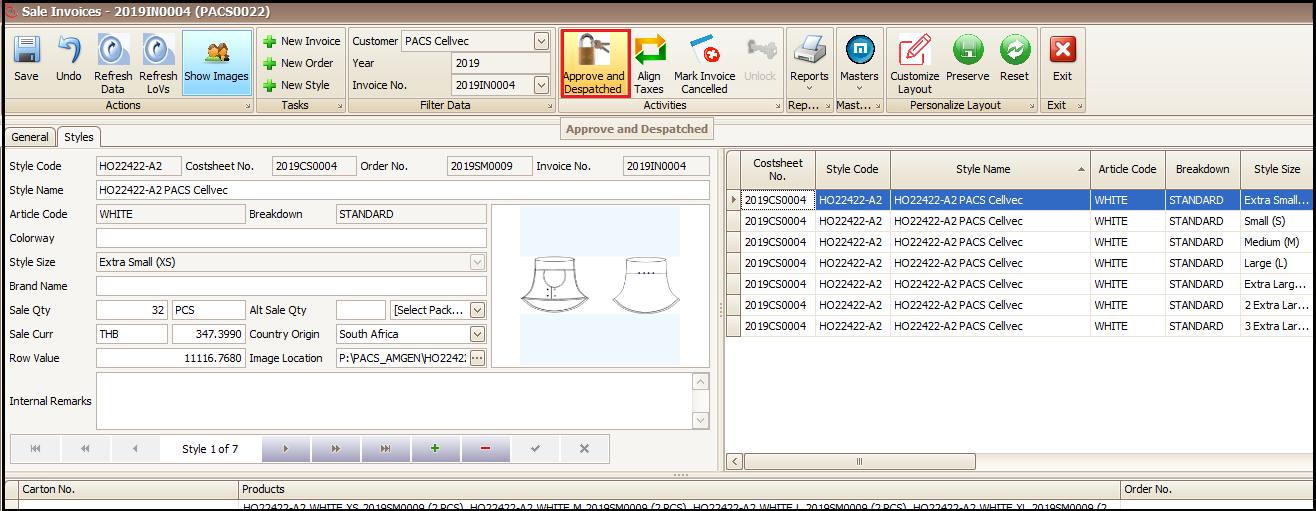
- A new pop up window will be opened where user can click on ‘Approved and Dispatched’. This action will confirm the sale invoice as well as deduct the finished goods (garment) stock from the warehouse stock.
- To get the print of sales invoice, user will go to ‘Reports’ and can choose local or commercial invoice as highlighted as per requirement or usage.
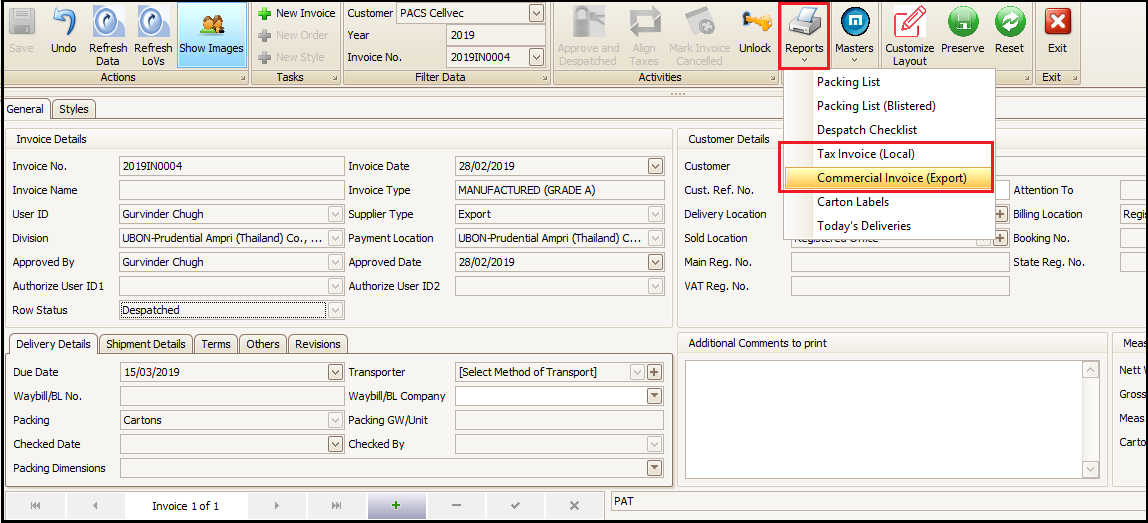
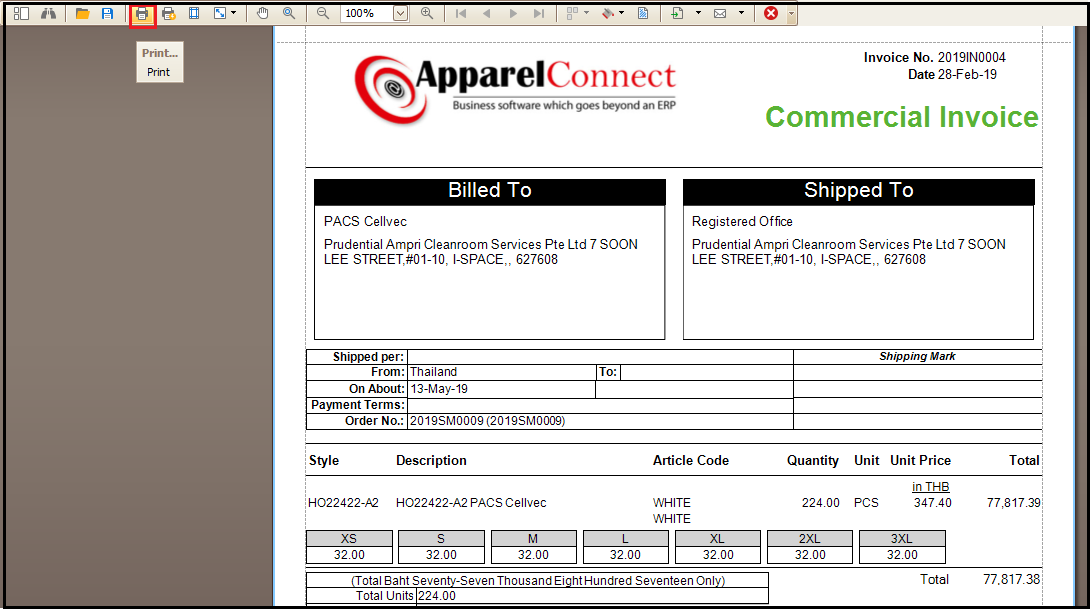
- To get the print of sales invoice, user will go to ‘Reports’ and can choose local or commercial invoice as highlighted as per requirement or usage. Below attached print is off ‘ Commercial Invoice (Export)’.
Created with the Personal Edition of HelpNDoc: Create help files for the Qt Help Framework