Work-flow (Style Development)
Time and Action Plan
T&A attached to sample order will show the activity status as defined in T&A. Assigned users have to complete those activities on defined time.
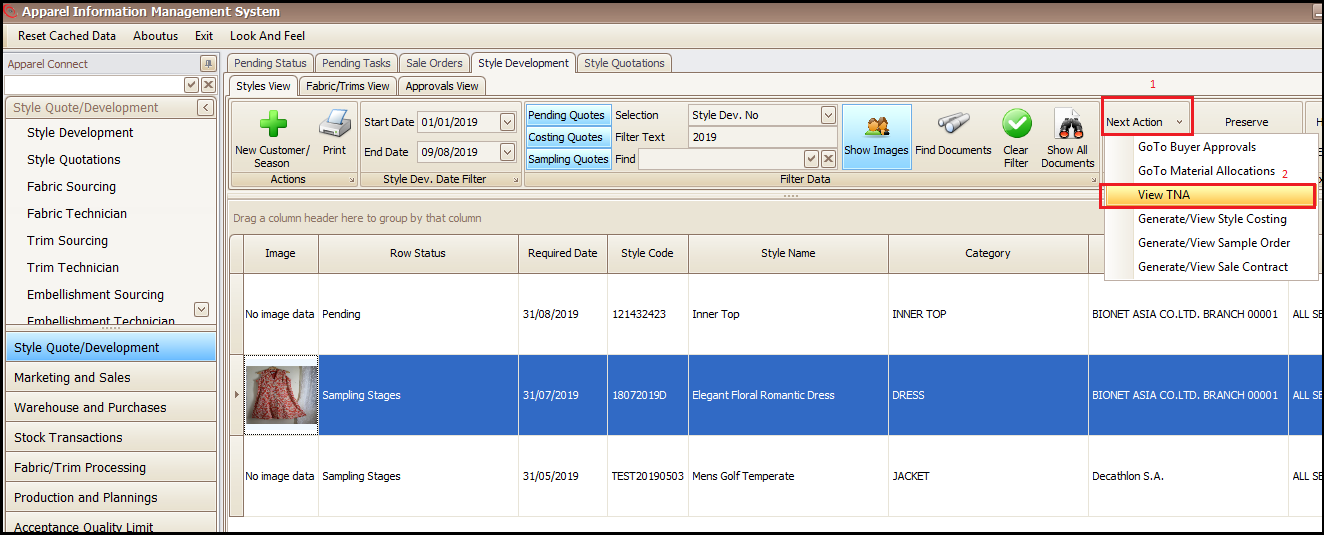
To view T&A activity status follow the below steps after selecting the sample style:
- Click on Next Action
- Click on View TNA (this will open a new window with task details)
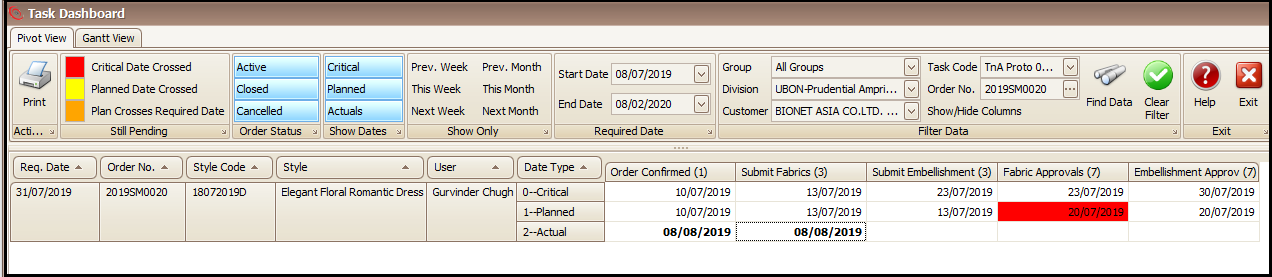
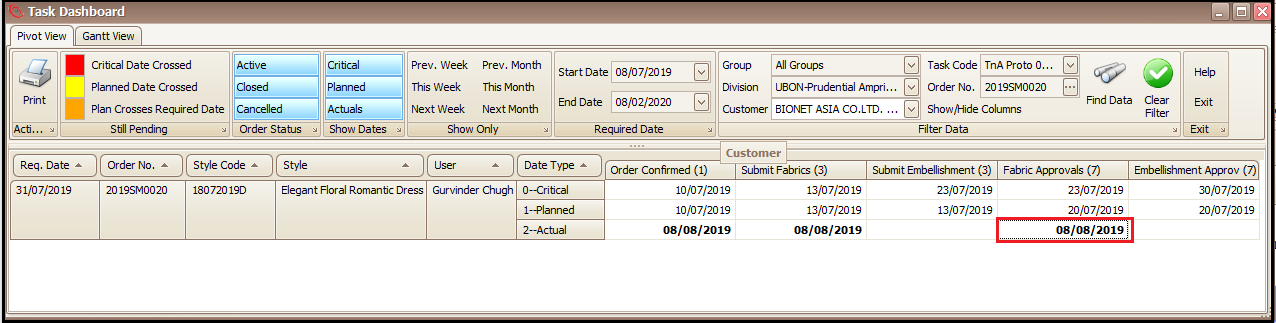
The color at any task display the status of that task for critical, planned and actual dates.
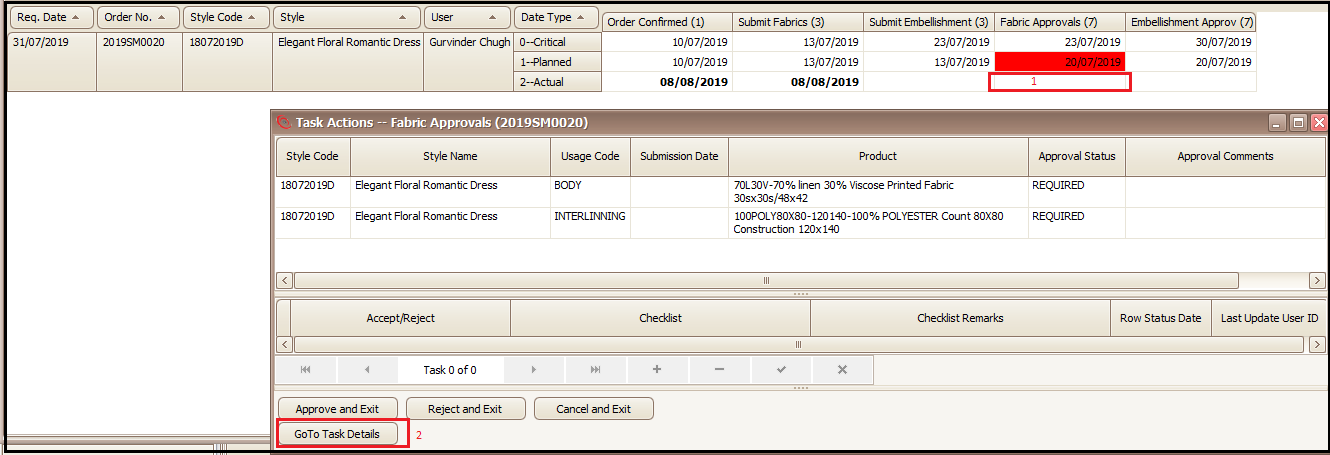
Task can be can be approved/ rejected/completed by double clicking on actual task column.
- Double click the pending task actual date column
- User can also directly Approve/Reject/Cancel the task and exit without going to details or
- Click on Go To Task Details (this will open a new screen)
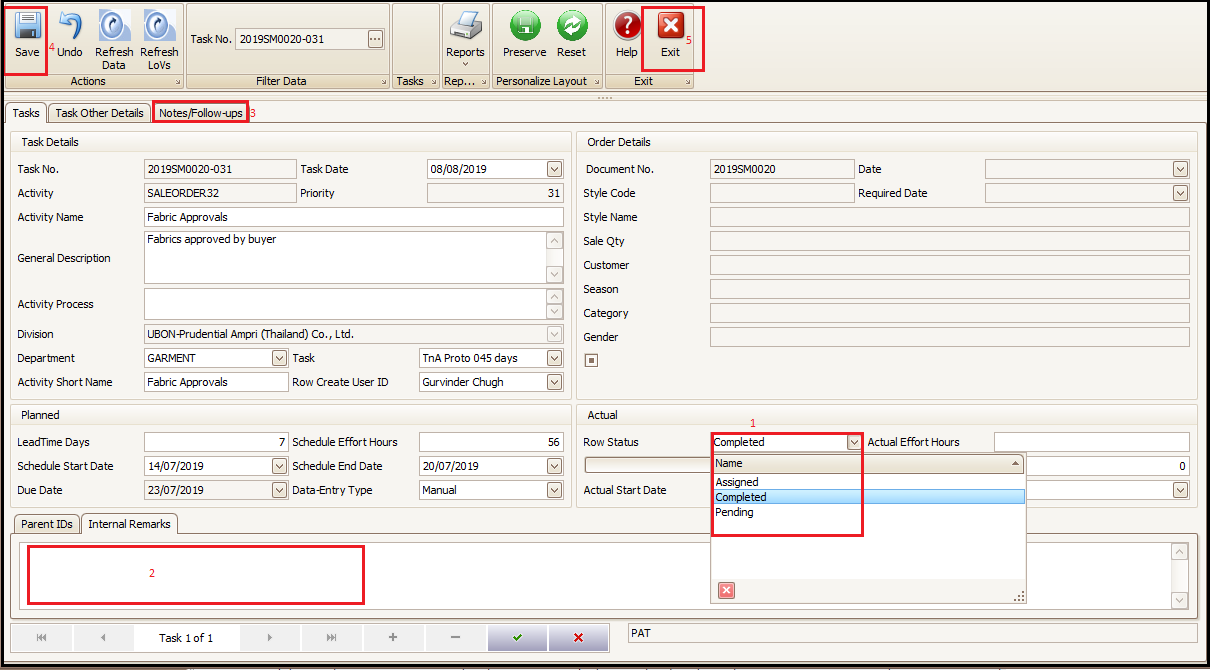
- Select the Row Status for task from drop down (e.g. completed/pending)
- Put internal remarks for task status
- Attach notes/documents related to task status
- Save and exit (this will update the actual date and task status)
- Task status will be marked as completed with actual completion date
Created with the Personal Edition of HelpNDoc: Easily create HTML Help documents