Manufacture Sample (Style Development)
Sample Order
Sample order is like sale order i.e. to record how many samples (in any color or size) need to be produced.
To create a sample order in ApparelConnect follow the below steps
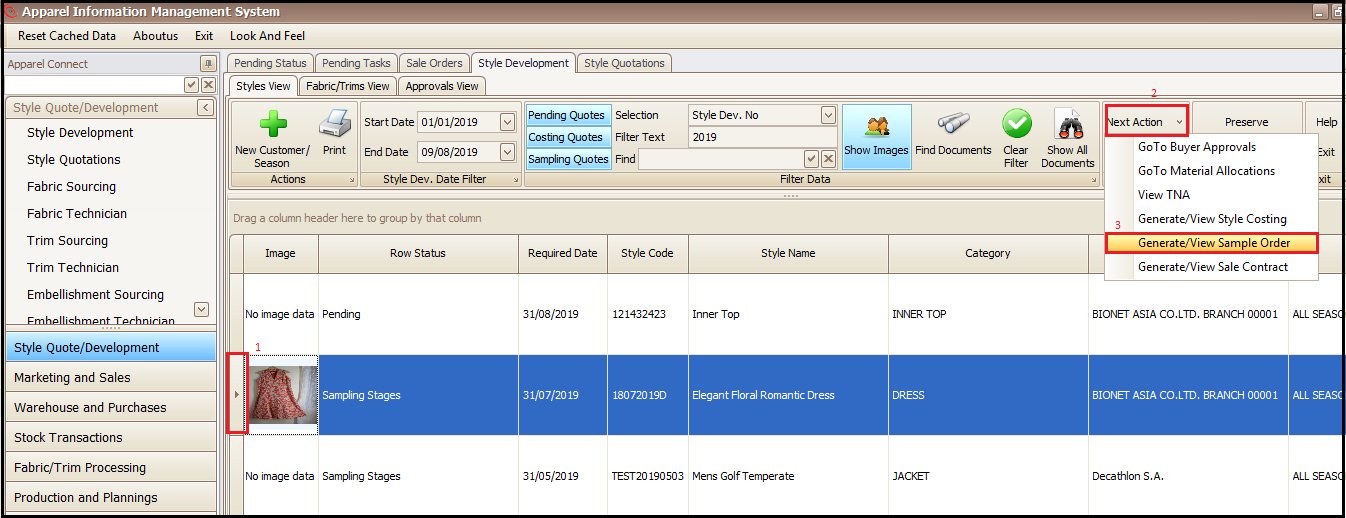
- Select the sample style (which has approved cost sheet)
- Click on Next Action
- Click on Generate/View Sample Order
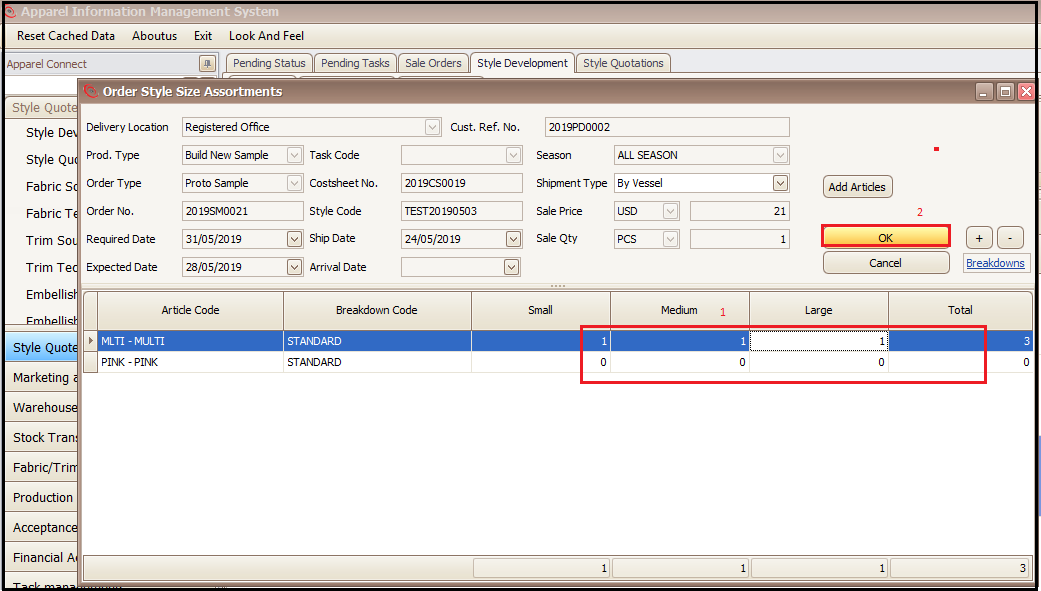
- In newly opened window enter the color size quantity of samples to be produced
- Click on OK (this will open main screen of sample order)
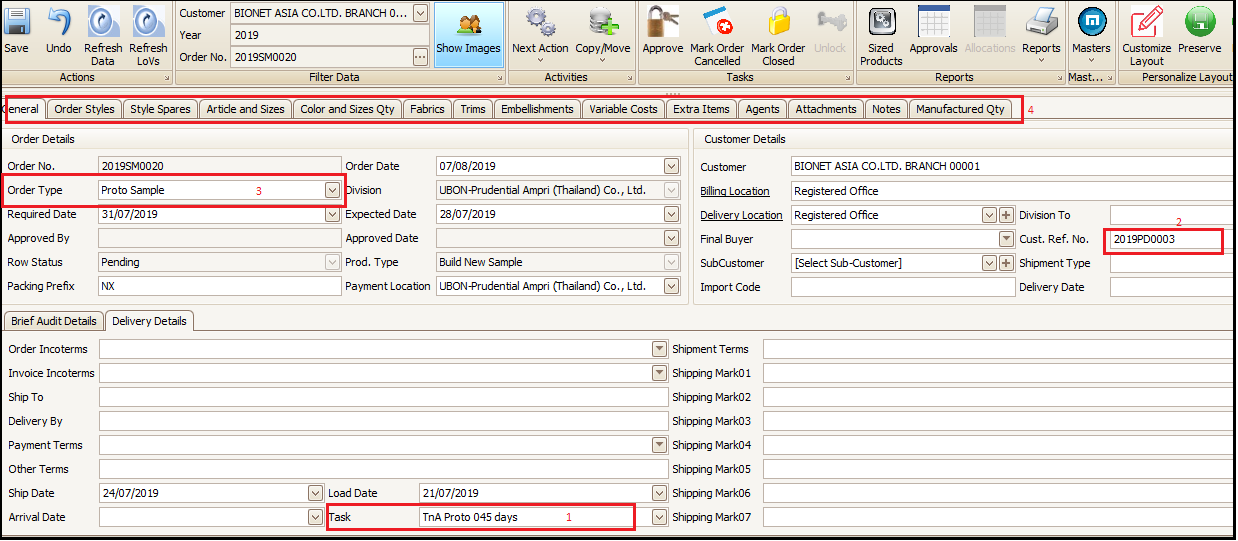
- Select the T&A template for sample order in Task drop down
- Fill the sample order number given by customer/buyer
- Select the sample type to be produced from Order Type drop down
- Change/fill appropriate information (coming from cost sheet) in other tabs
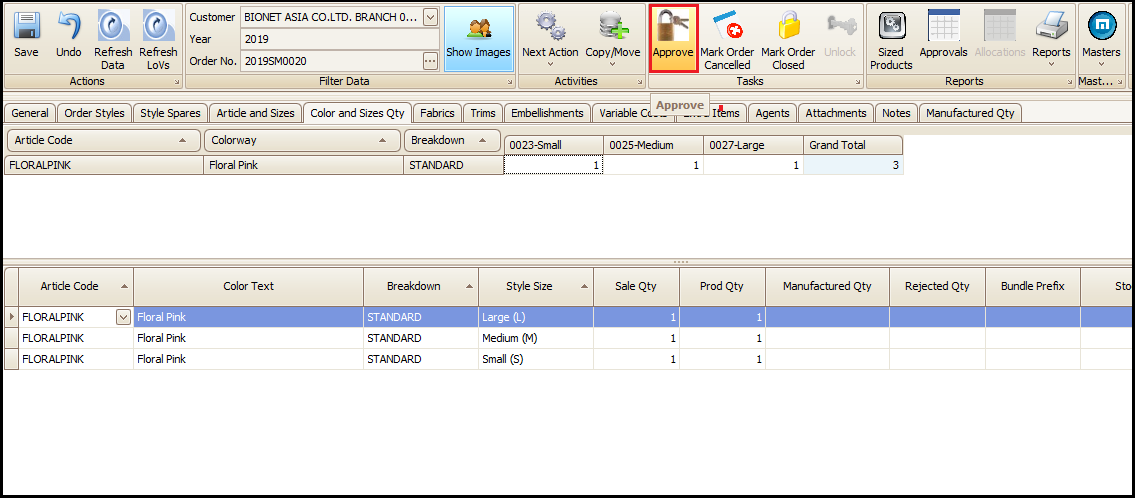
- Click on Approve to approve/confirm the Sample Order (This will result in Creation of BOM for trims and fabrics)
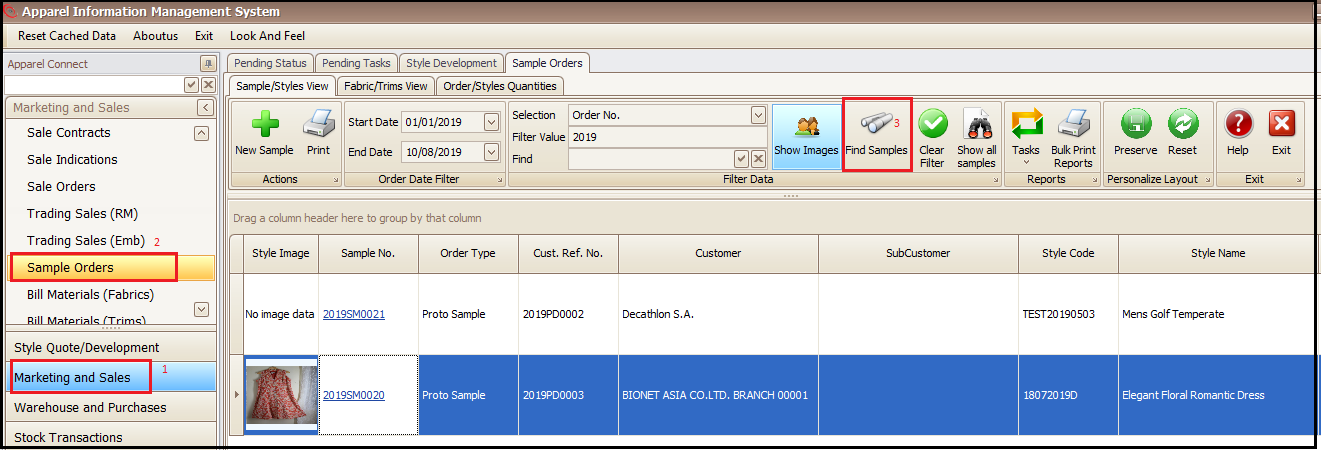
To view the list of all sample orders
- Click on marketing and sales
- Click on sample orders
- Click on find samples
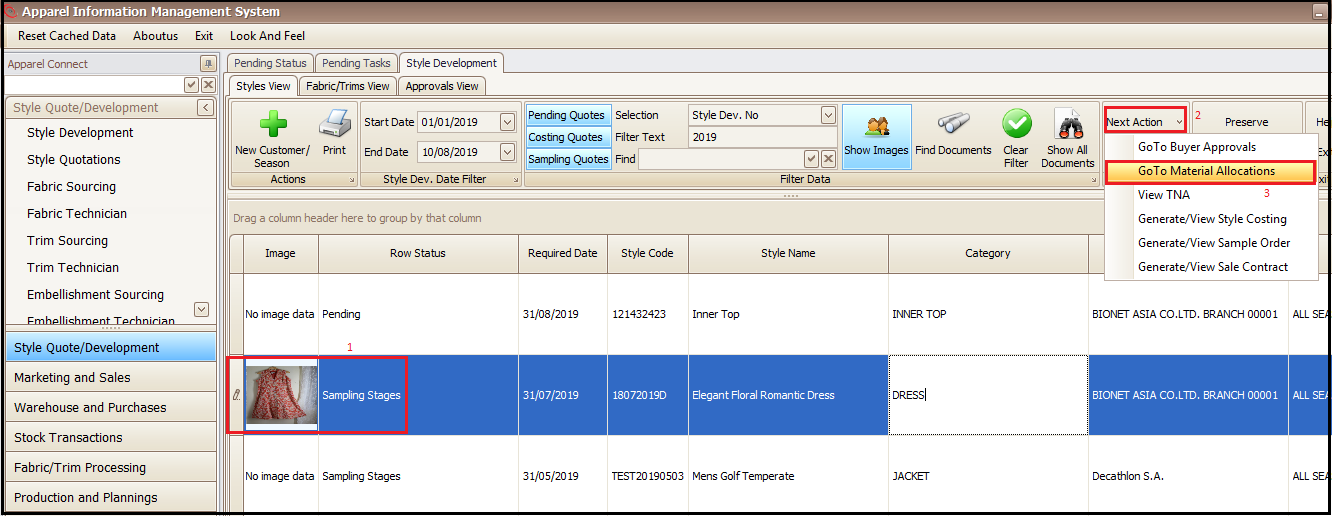
Check material Allocations for Sample Order before production
- Select the development style
- Click on Next Action
- Click on GoTo Material Allocations (this will open the new window with BOM material details
Check the real time status of material in below screen and take appropriate steps to fulfill the material required for sample order.
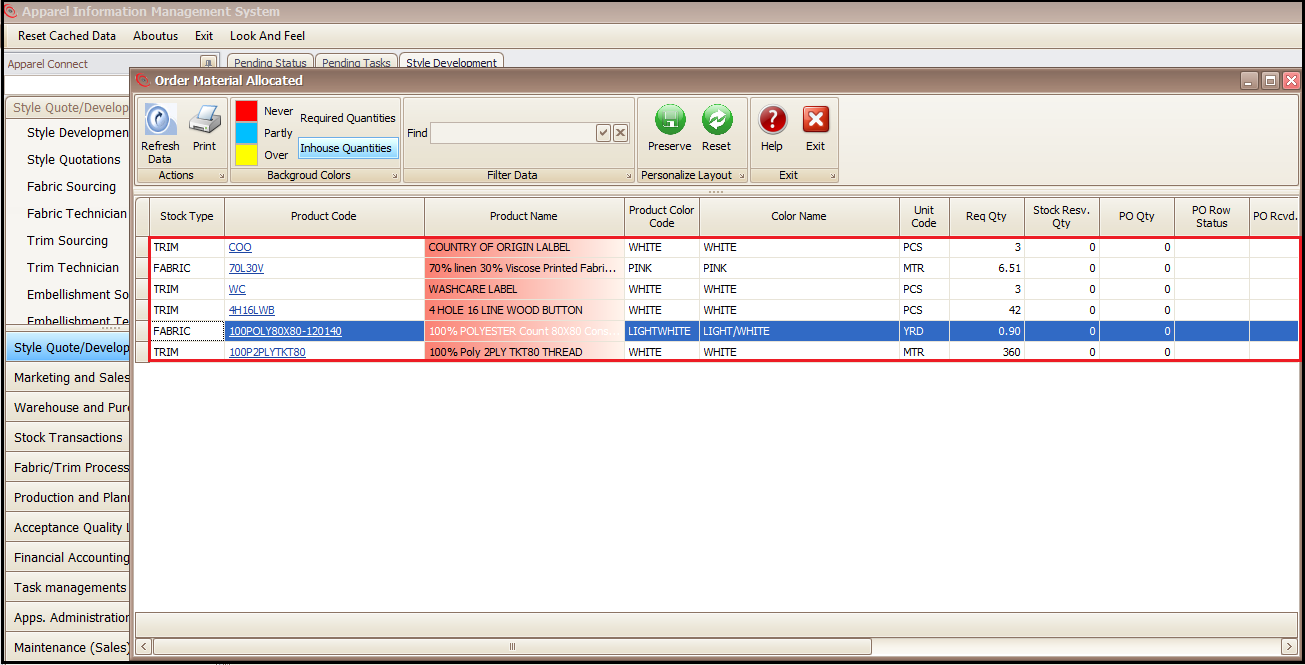
BOM material can be purchased or reserved the same way as we do in case bulk buyer purchase orders
Refer Material Purchase/Fulfillment
Created with the Personal Edition of HelpNDoc: Full-featured EBook editor