Auto Reservation from Free Stock
Auto Reservation
Once the BOM is released by merchandising team then purchase team has to check if free stock is available for any of the material present in that BOM. This availability can be checked by clicking on lens present in BOM next to the item code in BOM. If the material is available then material reservation is done from available free stock quantity. The available free stock may be sufficient for requirement or may be less then required. In case if it is less then required then after reservation balance quantity will be fulfilled from bulk purchase order or new purchase order will be created.
Steps to follow:
- Click on Sale Order BOM
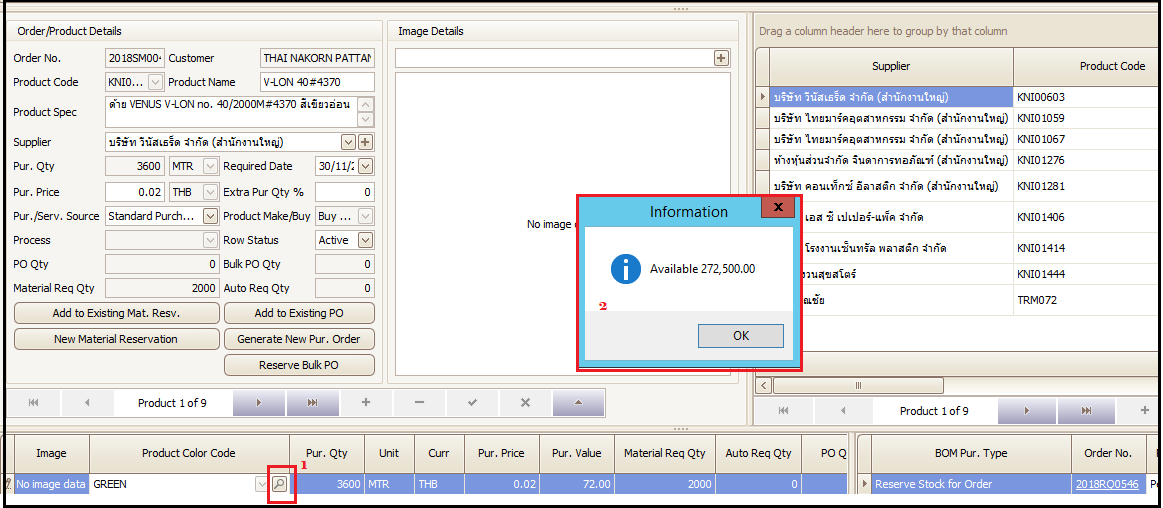
- Check the availability of free stock for the items of BOM
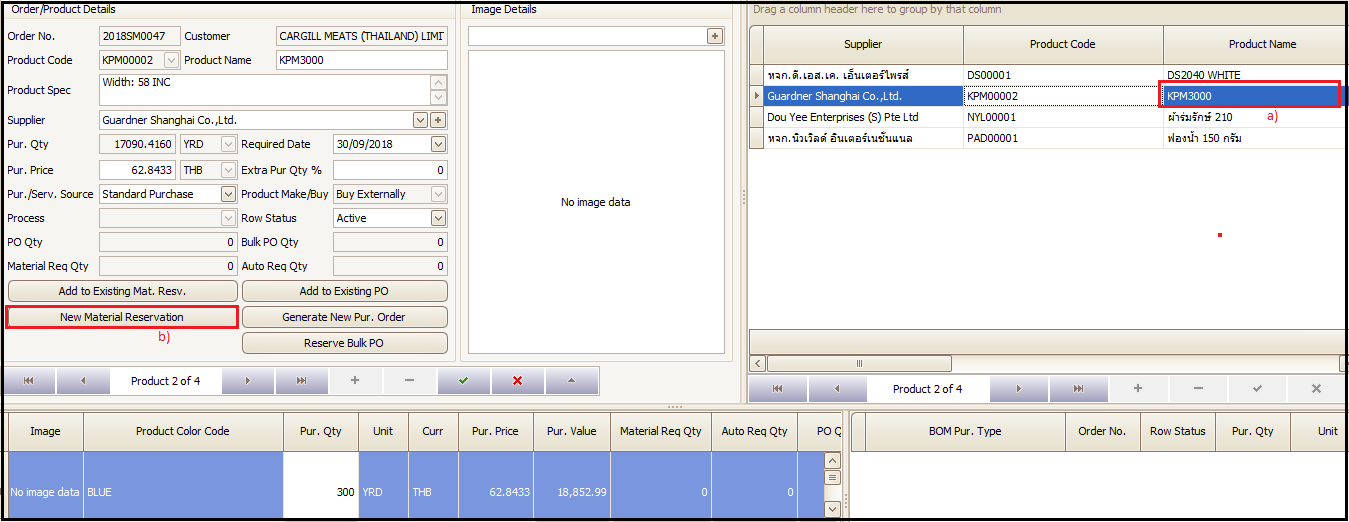
- Select the BOM item for which stock reservation needs to made and Click on ‘New Material Reservation’
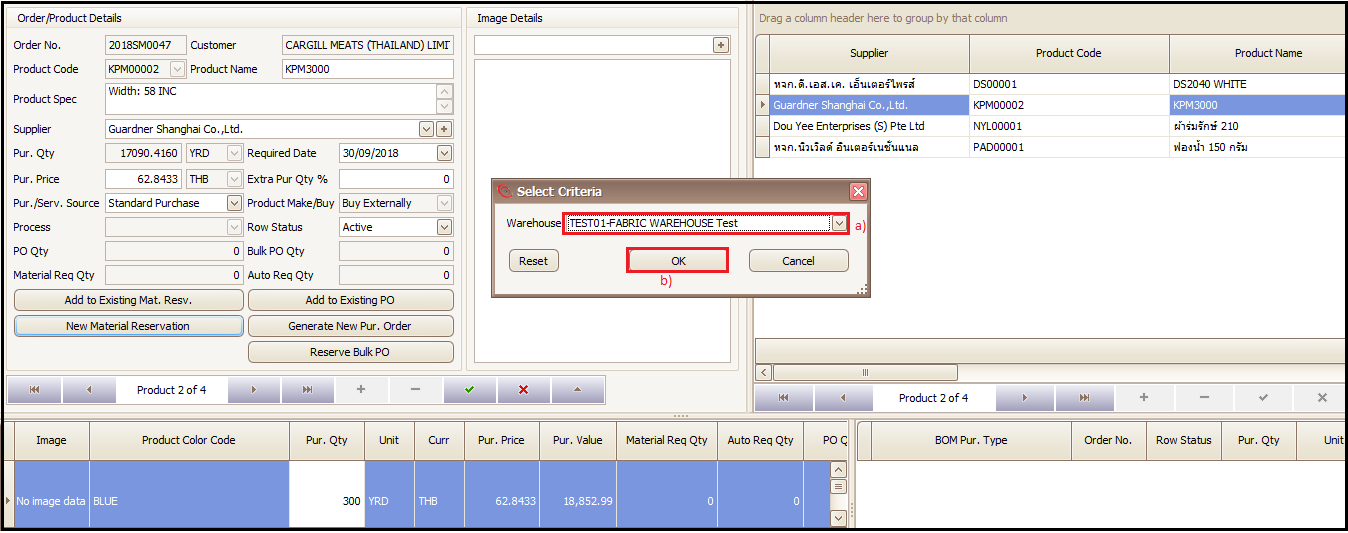
- Select the ware house from where you need reserve the available free stock and click OK
- System will auto allocate the available free stock to this BOM requirement
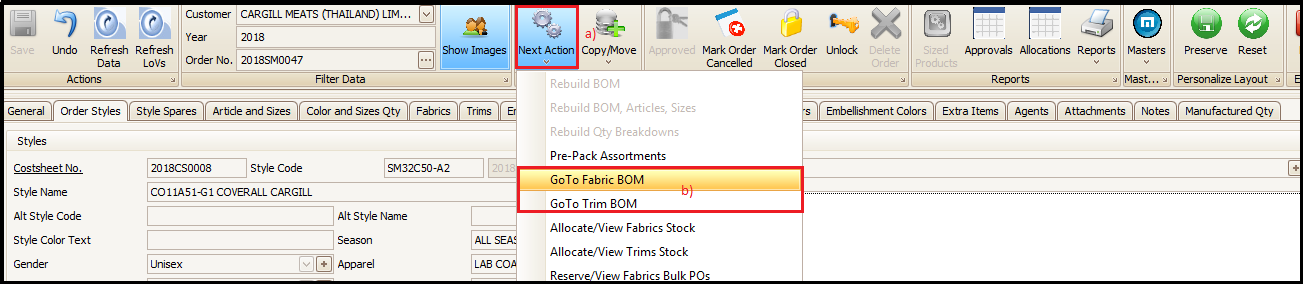
- After clicking on Fabric or Trim BOM for auto reservation process, user can select the material of the BOM for which he needs to check the availability of free stock to make the reservation. Click on lens shown next to product color code of that item. System will show a pop up with available free stock of that item.
- After checking the stock user can decide and choose any item from BOM for which auto stock reservation needs to be done.
- Select the item from BOM for which stock reservation needs to made and Click on ‘New Material Reservation’
- Select the ware house from where you need reserve the available free stock and click OK
- Here system has updated the 200 yards from the stock as available free stock was 200 yards only for that particular fabric quality, because available quantity in stock was 200 yards only. If the quantity available was 300 or more than 300 then system will pick the exact quantity (as BOM quantity) from the stock and make a reservation in this case of auto reservation.
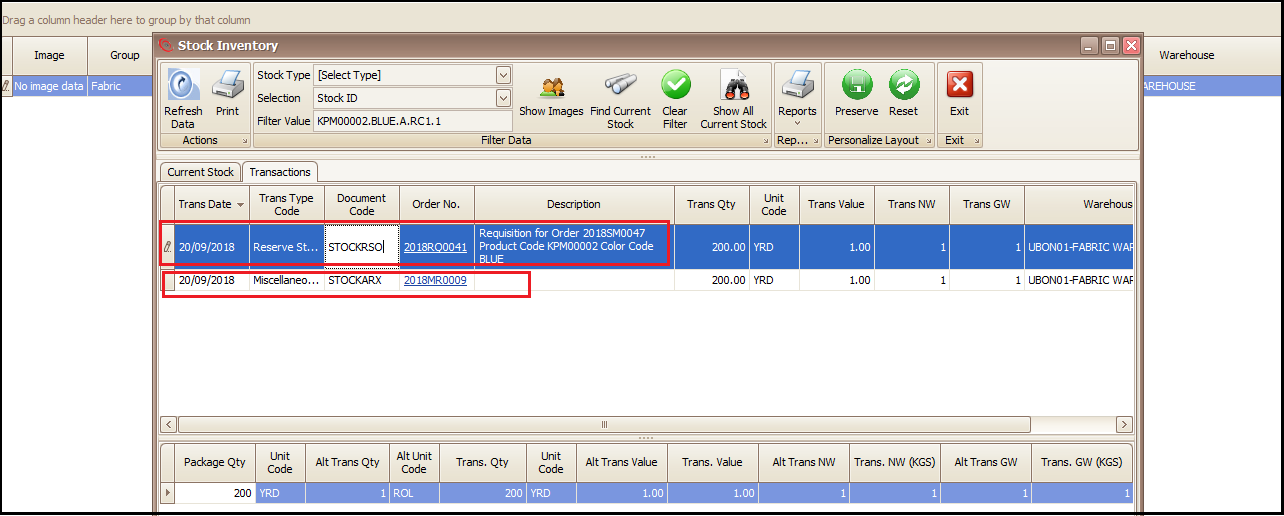
- If user wants to see the source of that material then it can click on ‘Order Number’ updated as highlighted. Once reservation document is opened user will double click on stock id and then in new window click on stock id again. This time in new popped up screen user will have stock source details.
- System will auto allocate the available free stock to this BOM requirement
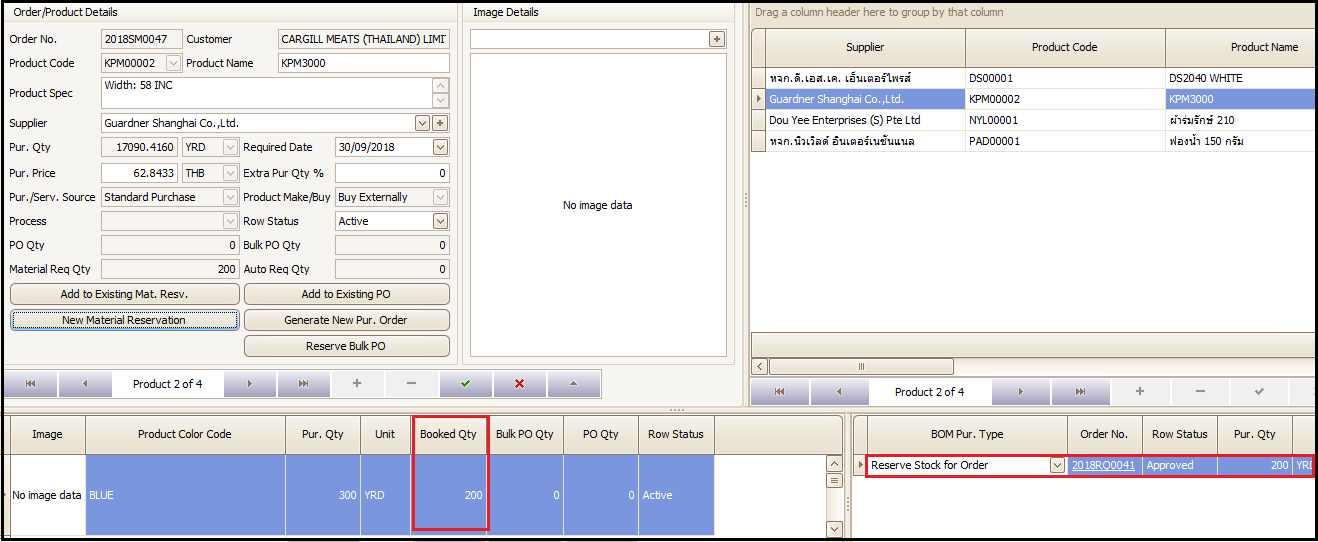
- Double Click Stock ID
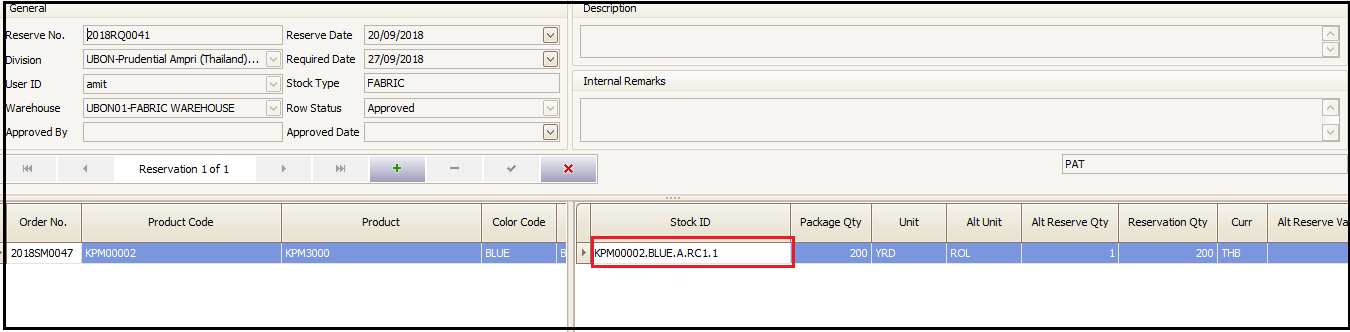
- Click the below highlighted Stock ID.

- The below highlighted row shows the stock source (in this case opening stock was entered via miscellaneous stock receiving).
- The upper highlighted row description column shows where did the material got reserved.
Created with the Personal Edition of HelpNDoc: Easily create CHM Help documents