Manual Reservation from Free Stock
Manual Reservation from free stock
Manual reservation from stock is done to reserve the specific quantity/packet/roll against the BOM requirement from available stock. In manual reservation user can choose which quantity/packet/roll he/she wants to reserve from stock. If user wants to split the packet or roll that can also be done to reserve the part quantity of that packet or roll.
Steps to follow:
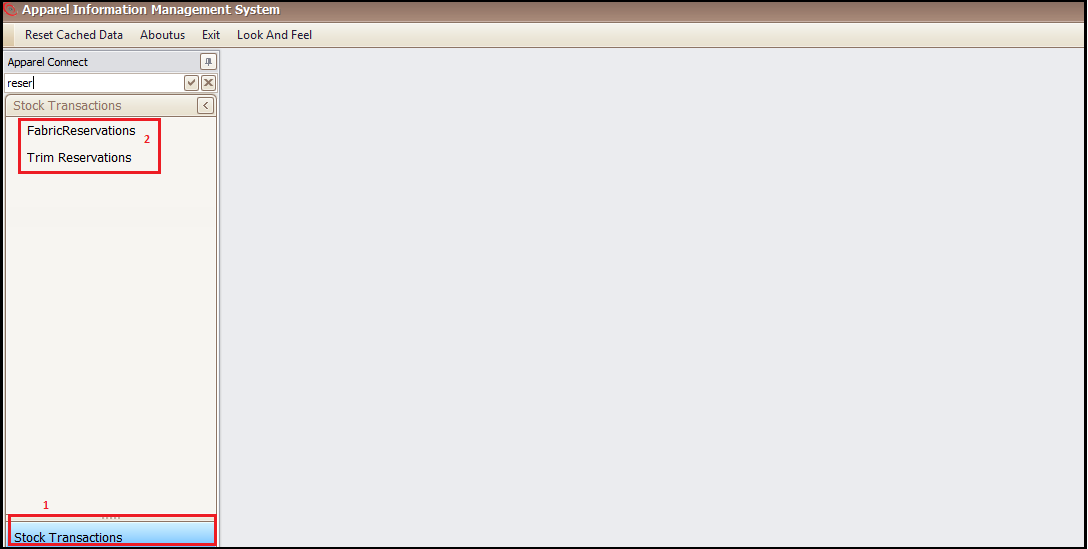
- Click on stock Transactions
- Choose Fabric/Trim Reservation
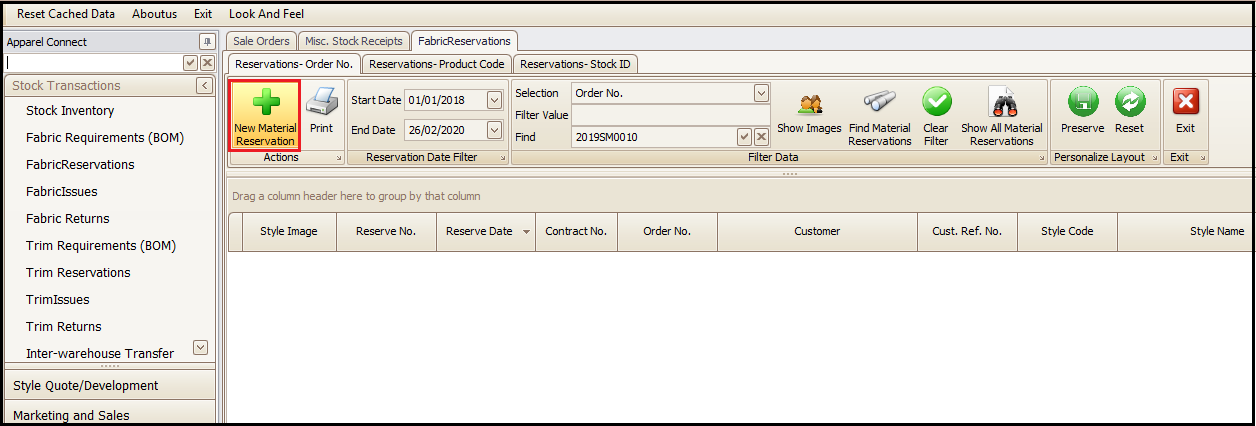
- Click on ‘New Material Reservation’
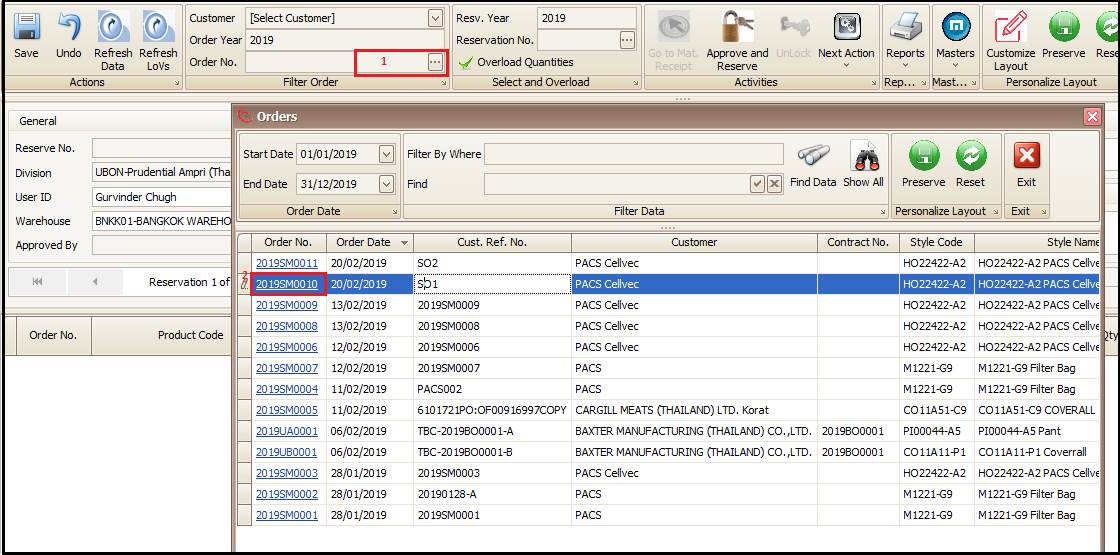
- Select the sale order of BOM
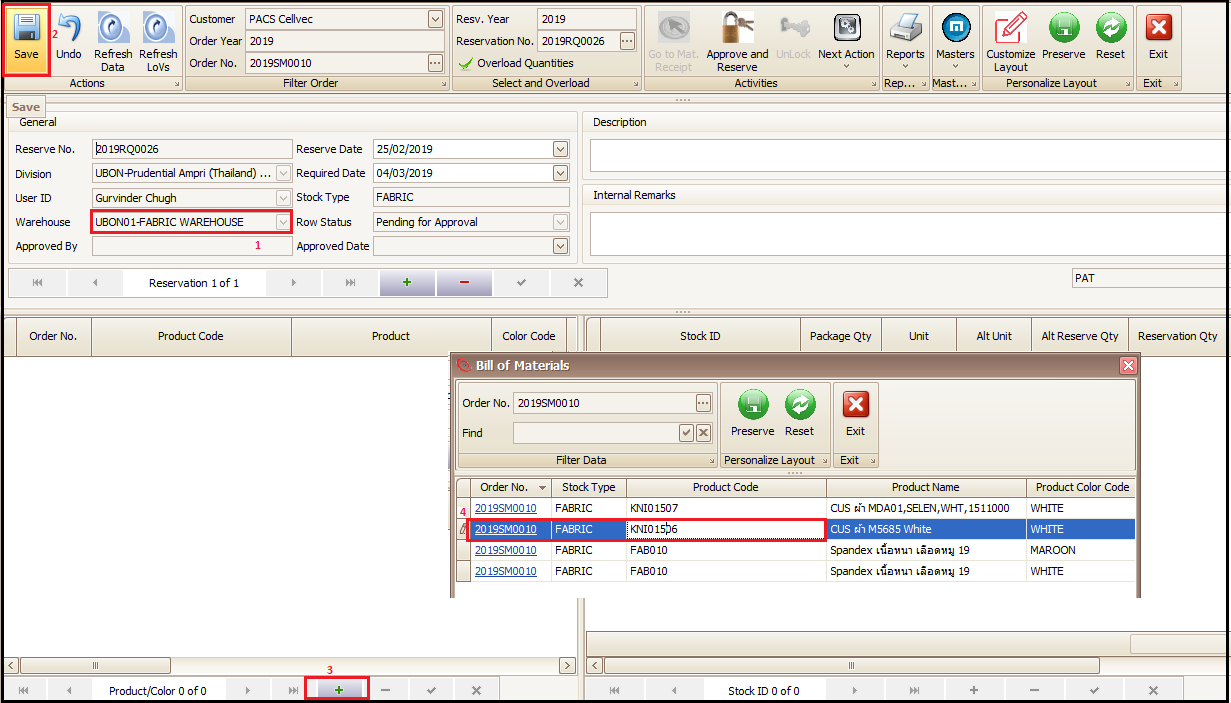
- Select the item for which the manual stock reservation needs to be done
- Choose the quantity rolls/packets (unit) to be reserved
- Approve the reservation
- Click on ‘New Material Reservation’ and a new pop window will open.
- Click on Order No. button to select the sale order for which the BOM has been created and user wants to manually reserve the stock.
- Select the warehouse of available free stock and then choose the item for which stocks needs to be reserved manually by following the highlighted steps.
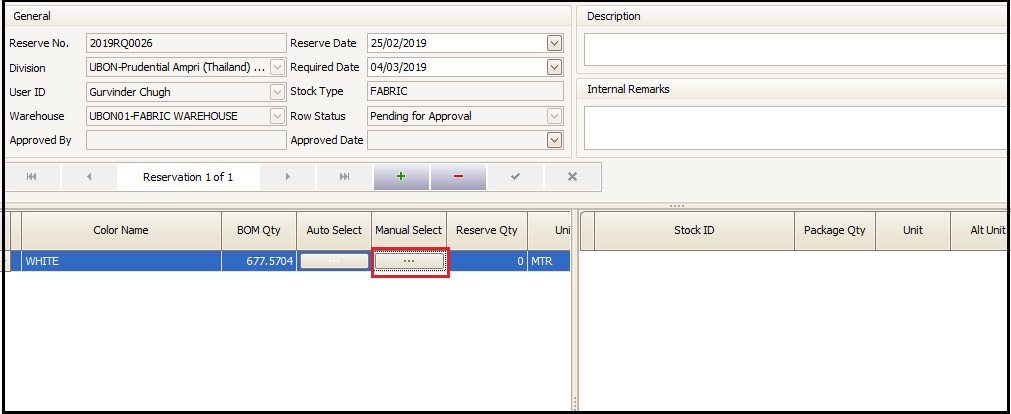
- User can see the required BOM quantity now and can click on ‘Manual Select’ button to choose the quantity to reserve from the stock. A new window will open.
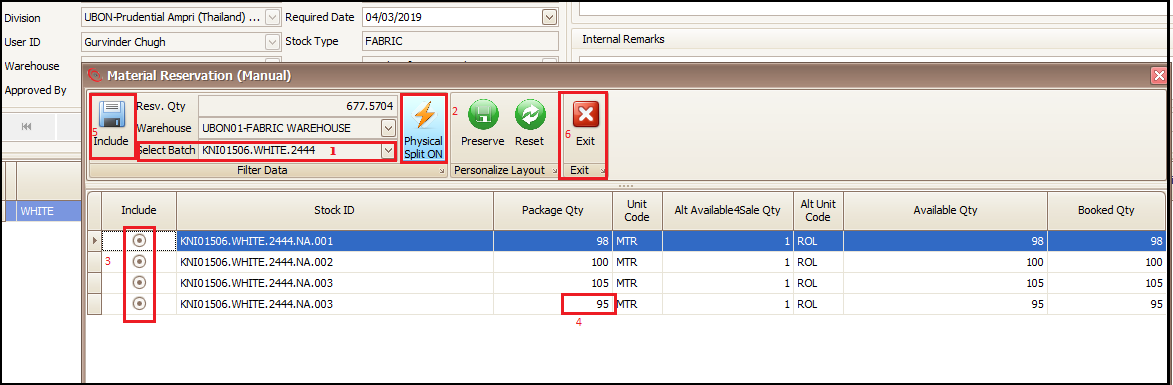
- Select Batch/ Item available in stock from the drop down. It will show the available quantity in stock for the chosen item. Keep the ‘physical split on’ in blue if you want to split the quantity of any available packet/roll, if you want to reserve partial quantity of any packet or roll.
- Select the desired packets or rolls which you want to reserve against the required BOM quantity. Split/change the package quantity to a quantity that you want to reserve out of total available package quantity.
- Click on include and exit.
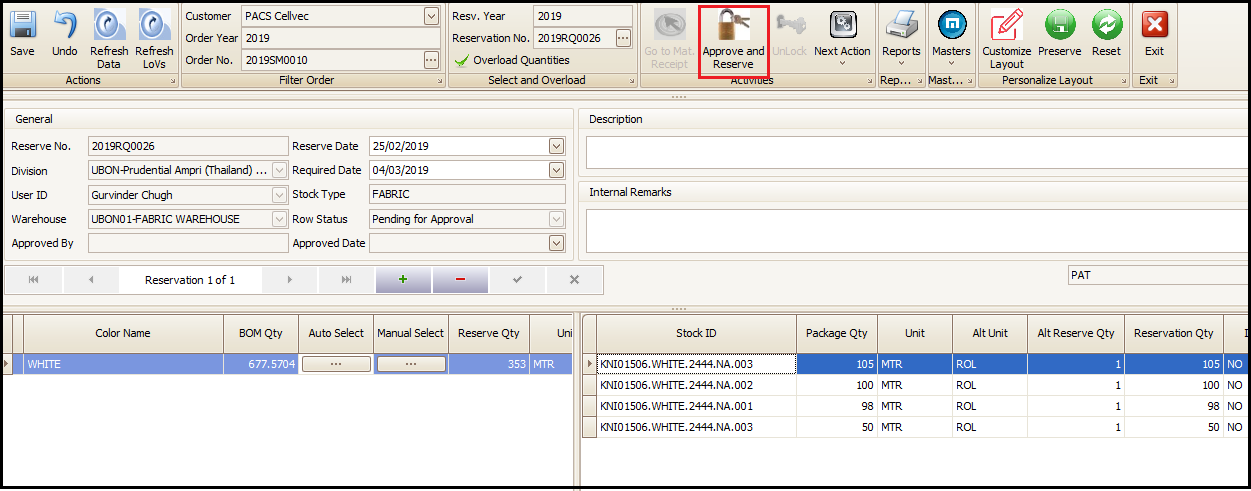
- After exit the selected rolls/packages will be shown in reservation main screen. User will click on “Approve and Reserve’ to confirm the reservation.
Created with the Personal Edition of HelpNDoc: Free EPub producer