How To Create a Material Receipt (Fabric)
Material (raw) Receiving is done after material purchase orders’ creation in apparel connect system. An approve material purchase order should exist in system to receive materials from suppliers. Fabric, trims and general item receiving is done by different sub menus in system.
- Fabric Receiving
- Trim Receiving
- General Item Receiving
- Miscellaneous Receiving
Fabric Receiving
Fabric receiving is done separately for order-based purchase orders and bulk purchase orders. Though the sub menus are different for easy identification of such receiving’ for users, the process of receiving in system is same.
Steps to follow:
- Go to ‘Warehouse and Purchases’
- Click on ‘Fabric Receipts (Order based)’ or ‘Fabric Receipts (Bulk) as per type of purchase order
- Click on New Material Receipts

Once user clicks on ‘New Material Receipts’ a new window will open and user has to enter details in that screen to receive the material.
Steps to follow:
- Fill the details like supplier, supplier invoice number, invoice date and warehouse etc.
- Click on green tick to save the details and get the running receipt number
- Click on ‘Add Qty Breakdowns’

The moment user clicks on ‘Add Qty Breakdowns’ a new screen opens up where user has to select the respective for which receiving needs to be created in system. In this screen user will enter receiving quantity and package details.
Steps to follow:
- Select purchase order number, product and color
- Enter dye lot/batch of the fabric, bin location where fabric will be kept in store and roll ID/No.
- Enter the length of the roll
- Click on ‘Next Roll’ + button to add the information of new roll
User has to enter the information which changes with the next roll like roll quantity etc. Other things will be copied from the previous filled information and next running number will be given for new roll by system automatically.
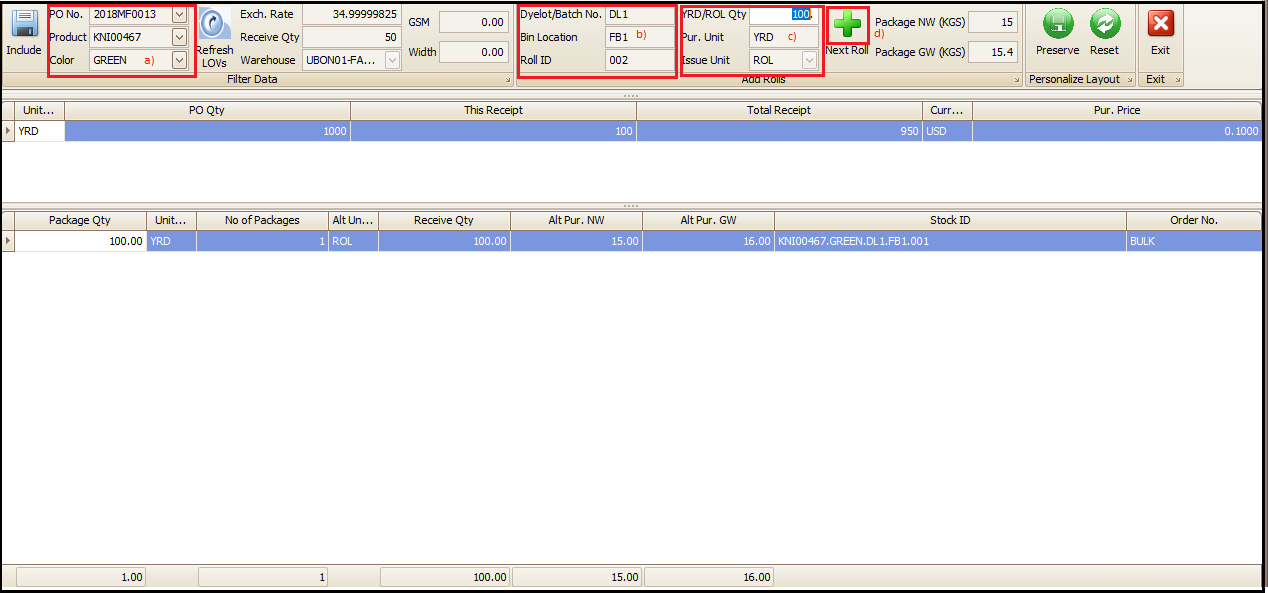
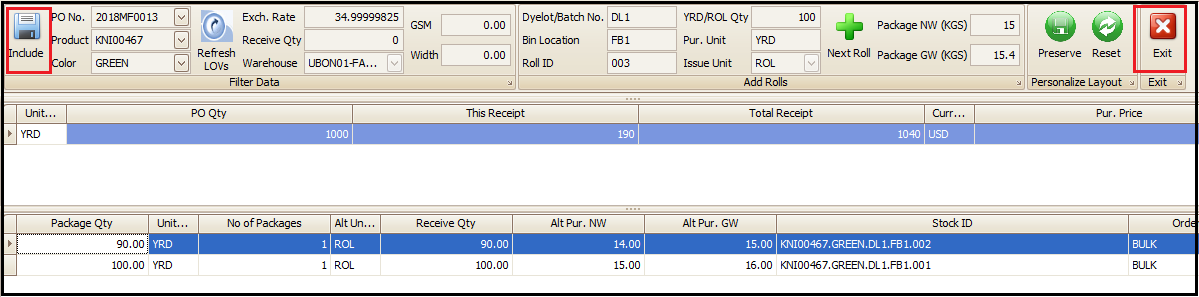
User will keep clicking on next roll and entering respective roll information till the last roll. If the quantity of last roll exceeds the balance to receive quantity in that case system will through and alert and opens a new pop window. In that window user can click on ‘Include’ after verifying or changing the roll quantity as per last roll.
Steps to follow:
- Verify and enter the last roll quantity
- Click on ‘Include’

- After clicking on include user has to click on click on ‘Include’ and then ‘Exit’ on the previous receiving screen to go to main screen.
- To see and print the packing details user will click on ‘Yes’ and on ‘No’ to stay on main screen.

- If user clicks on ‘Yes’ then below packing details report opens which has roll wise information and user can re-check if the entered data is correct or not and click on exit to go to main screen.

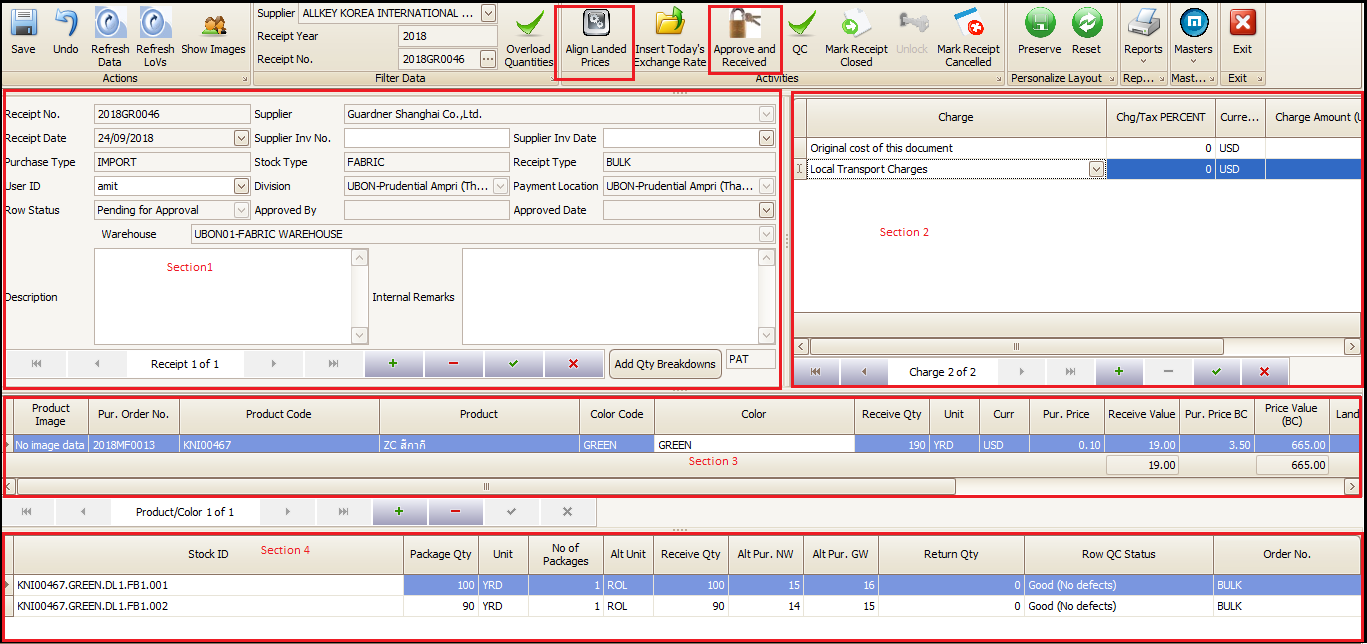
The main screen of receiving has four sections. Each section has different information.
- Section1: In this section the information is same which was entered during creating new receipt.
- Section2: In this section user can enter the extra landed charges which were not part of purchase order but later invoice came with delivery of material or after some time of delivery. User can click on + button and select the charge and can enter the amount or percentage, on the purchase order value, as per the nature of charge. Then click on ‘Align Landed Prices’ to recalculate the landed prices of the receipt.
- Section3: This section shows the total quantity of the receipt in product wise rows. Along with purchase price, value and landed price and value are also shown.
- Section4: Section 4 shows the roll or package wise details of the selected row of section3.
- At the end user clicks on ‘Approve and Received’ to confirm the receiving.
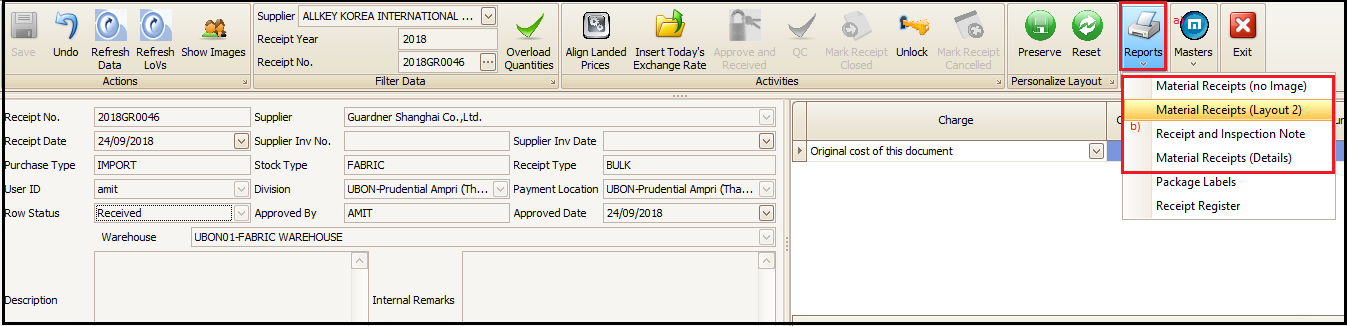
- Once receipt is confirmed, user can go to reports and select the suitable receiving view reports and take a print.

Created with the Personal Edition of HelpNDoc: Free EBook and documentation generator