How To Create a Material Receipt (Trim)
Trim Receiving
The process or trim receiving is same as fabric receiving.
- Go to Warehouse and and Purchases main menu
- Choose Trim Receipt as per the use case (Order based or bulk)
- Click on New Material Receipt (A new screen will open)

- Click on add Product Qty.
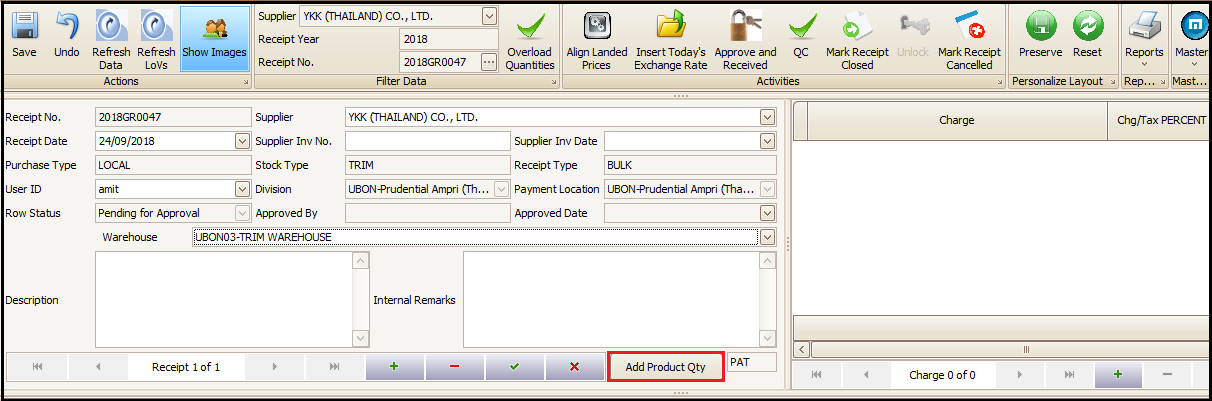
- Fill the details as explained for fabrics and click on ‘Add product Qty’

- After filling the all highlighted information same as per fabric process user has to click on generate packs. If ‘Combine BAG’ button is clicked (it becomes blue if clicked), then in that case system will generate one row for all the packages which have same quantity and a separate row for balance quantity. This button is ticked when we receive one big package which contains small packs into it. At last user will click ‘Include’ and then ‘Exit’.
- If this ‘Combined BAG’ is not ticked then one row will be created for each packet. This is kept un-tick when we receive the material in individual packs as shown in below screen.

- Rest of the process for landed charges addition, approval and view report print are same as explained Fabric Receiving
Created with the Personal Edition of HelpNDoc: Easy EPub and documentation editor