How To Create a Sale Order
Sale Order
Sale Order creation is the next process to Cost sheet in Apparel Connect. To create a sale order, for any style, the cost sheet must be in approved state. In sale order user have to enter the color size wise quantity break up of customer PO, customer PO number, delivery date etc. The user has to open the style cost sheet for which Sale Order needs to be created in system.
Steps to follow:
- Open Style Cost sheet
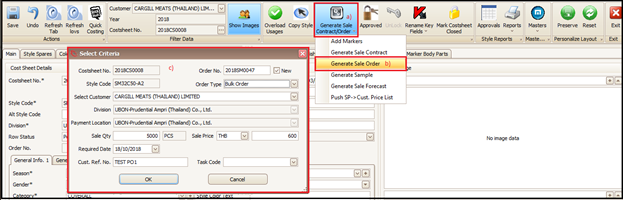
- Click on Generate Sale Order
- Click on Generate Sale Order
- Enter the information (Sale quantity, required date, sale price, customer ref. no. etc.) in pop up screen and attach the specific T&A from task code if you use Apparel Connect T&A functionality.
- Then click on OK.
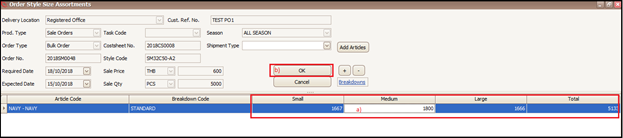
System will break down the entered total sale quantity in equal ratio for all the color and sizes of that style present in cost sheet. In next screen user can change the quantity as per the actual ones provided by customer in customer PO.
Steps to follow:
- Change the color size quantity break up as per customer PO
- Click on OK
As the user clicks on OK system will open the main screen of sale order. This screen will have all the tabs of material/Embellishment/Variable cost/color/size from cost sheet.
Steps to follow:
- Enter information related to customer, payment, delivery etc. on the main tab of sale order
- Save the entered information by clicking on save button

Size Wise Garment Price Update
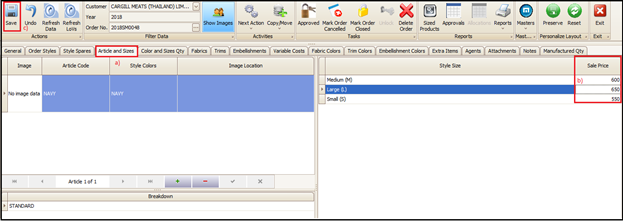
If the style has different sale price for different garment sizes then user can enter these sales prices against garment size in sale order.
Steps to follow:
- Click on ‘Article and Sizes’ tab
- Click on Style Size section and put the price against the garment sizes
- Click on save
Cost sheet Related Information Change
User can change the information which has been copied from cost sheet in respective tabs.
Steps to follow:
- Click on respective tab (fabrics/trims/embellishment/variable/attachments/notes cost etc.) and change the desired information
- Save it by clicking on save button

Extra Items
Refer New Unaccounted Products (Sale Order)
Manufactured Quantity
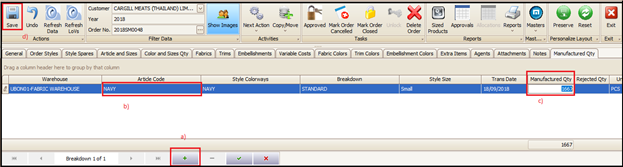
Manufactured quantity can be updated manually on sales order by user for that style in in ‘Manufactured Quantity’ tab once production is over. We can mark the rejection also.
Steps to follow:
- Click on + button at the bottom
- Select article code (color/size)
- Enter the manufactured and rejected quantity
- Save the entered data
Order Approval
User/management has to approve the sale order once all information is entered correctly. As soon as the order will be approved fabric and trims BOM will be generated automatically.
Steps to follow:
- Click on approve button give at the top of the screen of sale order
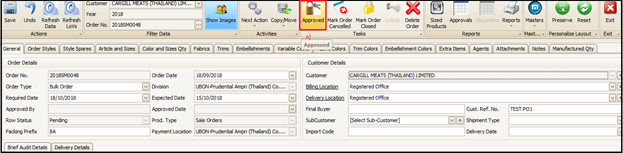
User can Click on reports button and can take print out of sale order by selecting a suitable report view format.
Cancel/Close Sale Order
Refer Close/Cancel (Sale Order)
Copy Sale Order
Refer Copy/Move (Sale Order)
The copied sale order information can be changed as desired by going to respective information tabs. Sale order can also be deleted (If the situation arises to delete) by clicking on ‘Delete Order’ tab at the top of sale order screen.

Created with the Personal Edition of HelpNDoc: Easily create Web Help sites